จัดการสินค้าที่ได้รับเกิน/สินค้าที่ขาดหาย
บนแอป SASOM
ขั้นตอนที่ 1: จัดการสินค้าที่ได้รับเกิน - ตั้งราคา
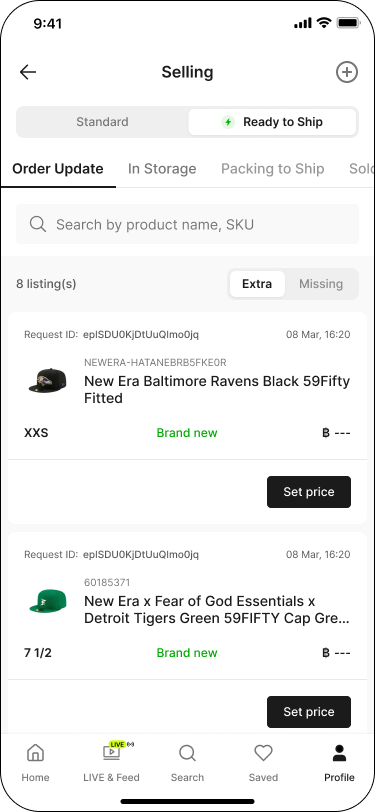
สินค้าที่ถูกส่งมานอกเหนือจากที่ระบุไว้ในคำขอนำสินค้าเข้าคลัง จะถือเป็น สินค้าที่ได้รับเกิน (Extra Received)
คุณต้องตั้งราคาขายให้กับสินค้าประเภทนี้เพื่อสร้างรายการตั้งขาย โดยทำตามขั้นตอนต่อไปนี้
ไปที่แท็บ 'โปรไฟล์' (Profile) จากนั้นในส่วน 'รายการขาย' (Selling) แตะที่สถานะ 'รอดำเนินการ' (Pending)
สลับแท็บเป็น 'พร้อมจัดส่ง' (Ready to Ship) จากนั้นไปที่แท็บ 'ติดตามสินค้า' (Order Update)
แตะแท็บย่อย 'ได้รับเกิน' (Extra) เพื่อตรวจสอบรายการสินค้าที่ได้รับเกินในรายการ
แตะ 'ตั้งราคา' (Set Price) ที่สินค้าแต่ละรายการ
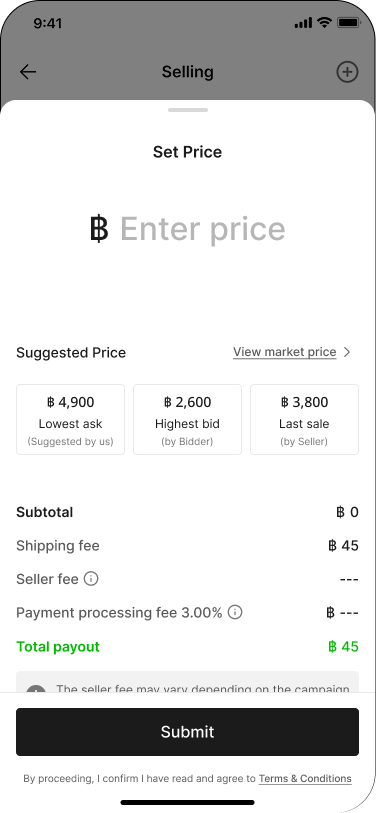
กรอกราคาที่ต้องการ — ดูราคาที่แนะนำและตรวจสอบค่าธรรมเนียมที่แสดง แล้วแตะ 'ยืนยัน' (Submit)
ขั้นตอนที่ 2: ตรวจสอบสินค้าที่ขาดหาย
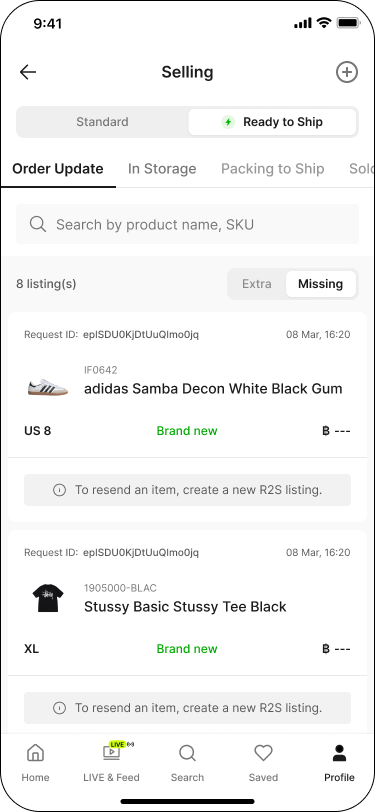
สินค้าที่ระบุว่า ขาดหาย (Missing) ในคำขอ จะไม่ถูกสร้างเป็นรายการขาย ทั้งนี้คุณสามารถสร้างคำขอนำสินค้าเข้าคลังใหม่และจัดส่งมายัง SASOM อีกครั้งได้
ตรวจสอบรายการสินค้าที่ขาดหายได้ตามขั้นตอนดังนี้
ไปที่แท็บ 'โปรไฟล์' (Profile) จากนั้นในส่วน 'รายการขาย' (Selling) แตะที่สถานะ 'รอดำเนินการ' (Pending)
สลับแท็บเป็น 'พร้อมจัดส่ง' (Ready to Ship) จากนั้นไปที่แท็บ 'ติดตามสินค้า' (Order Update)
แตะแท็บย่อย 'ขาดหาย' (Missing) เพื่อตรวจสอบรายการสินค้าที่ขาดหายในรายการ สินค้าแต่ละรายการจะแสดงข้อความ 'ส่งสินค้าอีกครั้งโดยสร้างรายการตั้งขายใหม่'
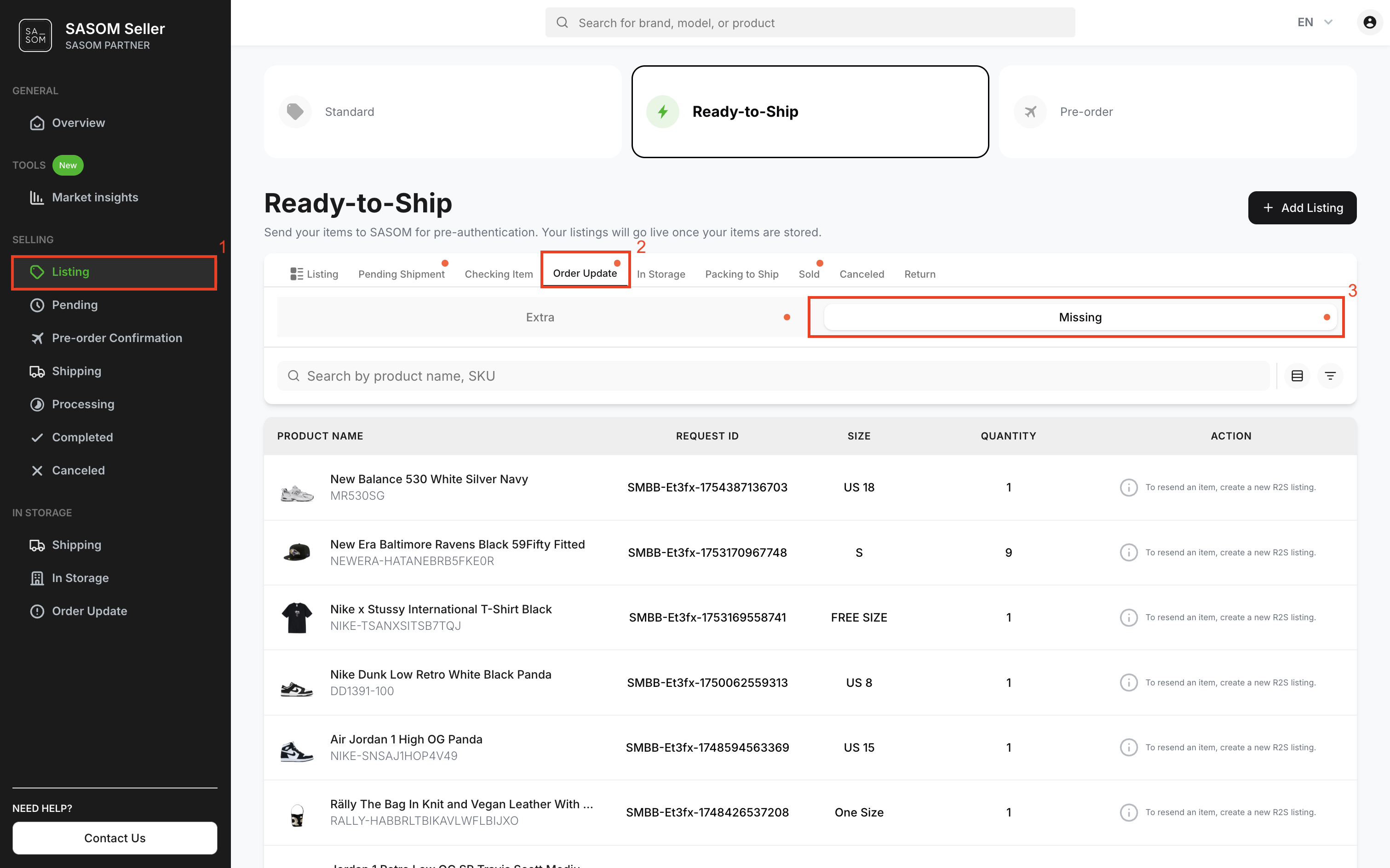
บน SASOM Seller Center
ขั้นตอนที่ 1: จัดการสินค้าที่ได้รับเกิน - ตั้งราคา
สินค้าที่ถูกส่งมานอกเหนือจากที่ระบุไว้ในคำขอนำสินค้าเข้าคลัง จะถือเป็น สินค้าที่ได้รับเกิน (Extra Received)
คุณต้องตั้งราคาขาย ให้กับสินค้าประเภทนี้เพื่อสร้างรายการตั้งขาย โดยทำตามขั้นตอนต่อไปนี้
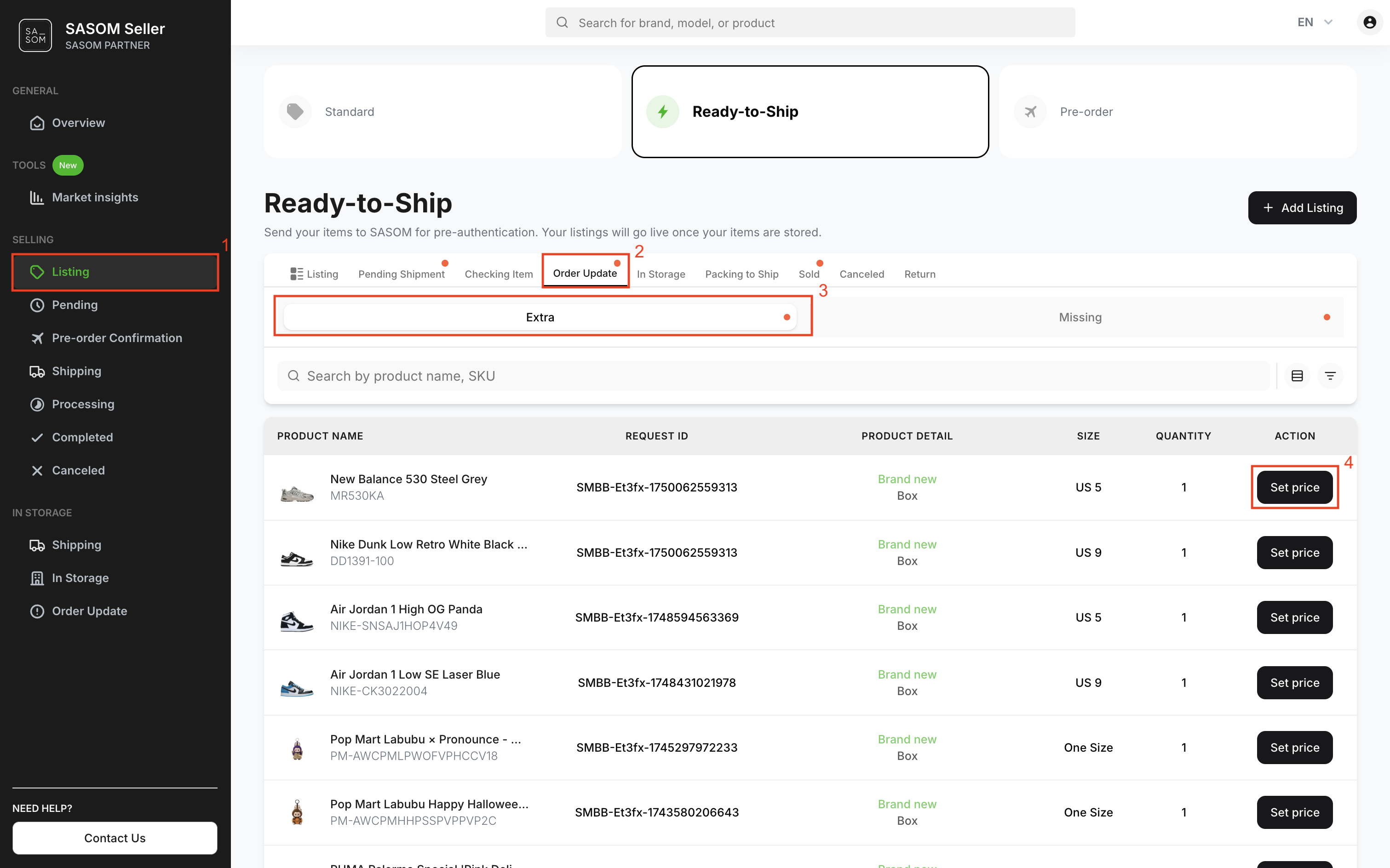
- ไปที่เมนู 'รายการสินค้า' (Listing)
- เลือกเมนู 'พร้อมจัดส่ง' (Ready-to-Ship) และแท็บ 'ติดตามสินค้า' (Order Update)
- เลือกแท็บย่อย 'ได้รับเกิน' (Extra) เพื่อตรวจสอบรายการสินค้าที่ได้รับเกินในตาราง
- คลิกปุ่ม 'ตั้งราคา' (Set Price) ที่สินค้าแต่ละรายการเพื่อตั้งราคาขาย
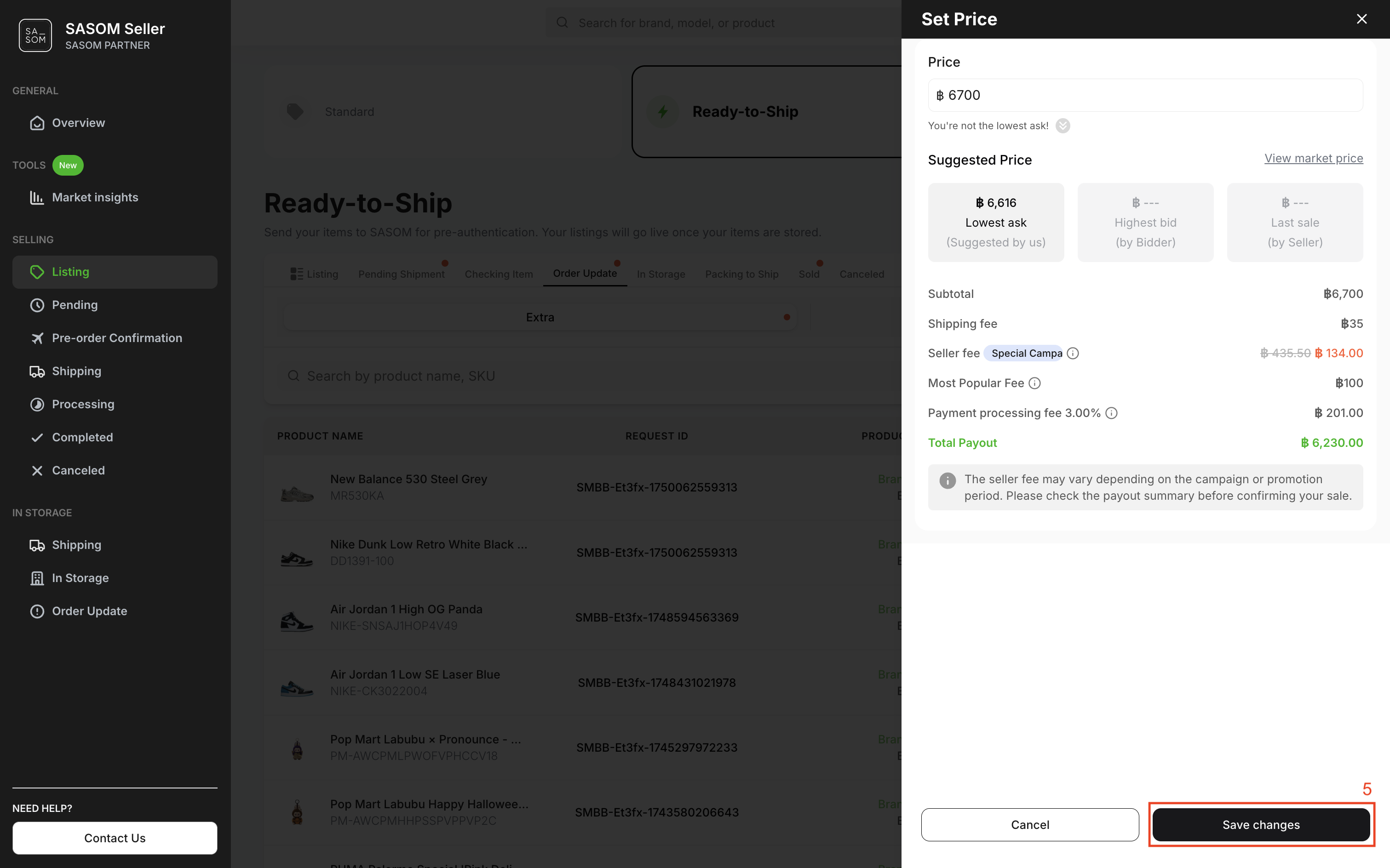
5. กรอกราคาที่ต้องการในช่องราคา แล้วคลิก ‘'บันทึก' (Save Changes)
ขั้นตอนที่ 2: ตรวจสอบสินค้าที่ขาดหาย
สินค้าที่ระบุว่า ขาดหาย (Missing) ในคำขอ จะไม่ถูกสร้างเป็นรายการขาย
ทั้งนี้คุณสามารถสร้างคำขอนำสินค้าเข้าคลังใหม่และจัดส่งมายัง SASOM อีกครั้งได้
ตรวจสอบรายการสินค้าที่ขาดหายได้ตามขั้นตอนดังนี้
- ไปที่เมนู 'รายการสินค้า' (Listing)
- เลือกเมนู 'พร้อมจัดส่ง' (Ready-to-Ship) และแท็บ 'ติดตามสินค้า' (Order Update)
- เลือกแท็บย่อย 'ขาดหาย' (Missing) เพื่อตรวจสอบรายการสินค้าที่ขาดหายในตาราง