How to Create a Video Listing
What is a Video to Sell?
It's a short, engaging video added to your product post, giving buyers a true, 360-degree view of the item much better than static photos alone!
Step 1: Start Your Post
Open the "Feed" menu (Make sure you are logged into your SASOM account).
Tap '+' (Add video) button in the top right corner.
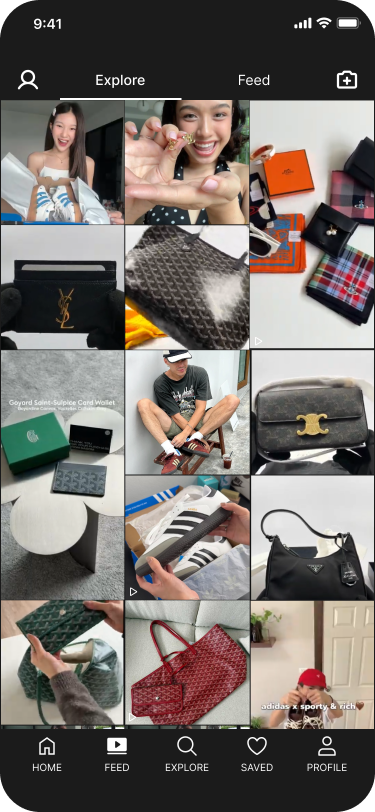
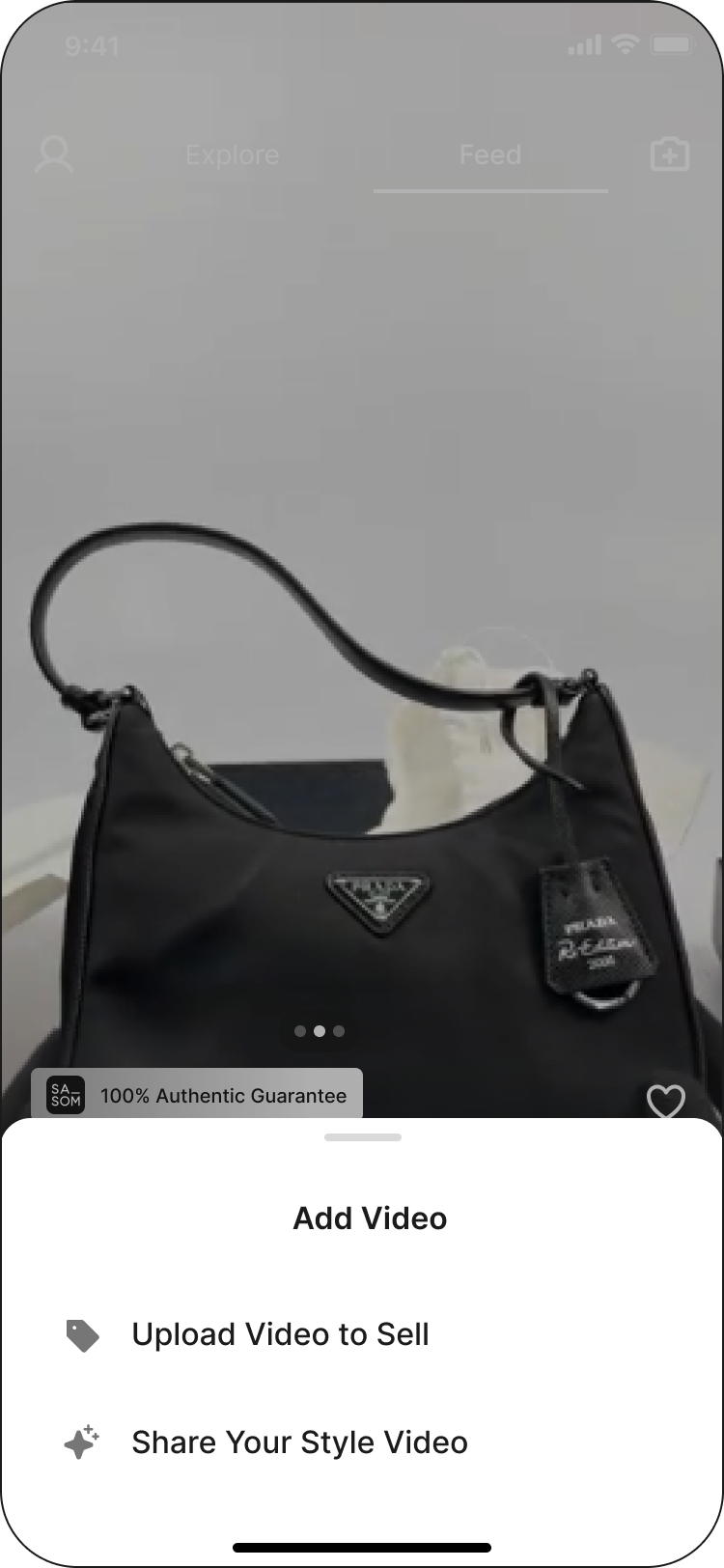
3. Select 'Add Video to Sell'
Step 2: Upload Your Media
Video Requirement: Select 1 video (required).
Maximum length: 2 minutes.
Recommended length for best results: 30-60 seconds
You may also include up to 9 optional images.
💡 Pro-Tip: Film in bright, natural lighting and keep your camera steady to show all product angles clearly!
Step 3: Detail Your product
Select or Create Product
- Search for your item in the SASOM database.
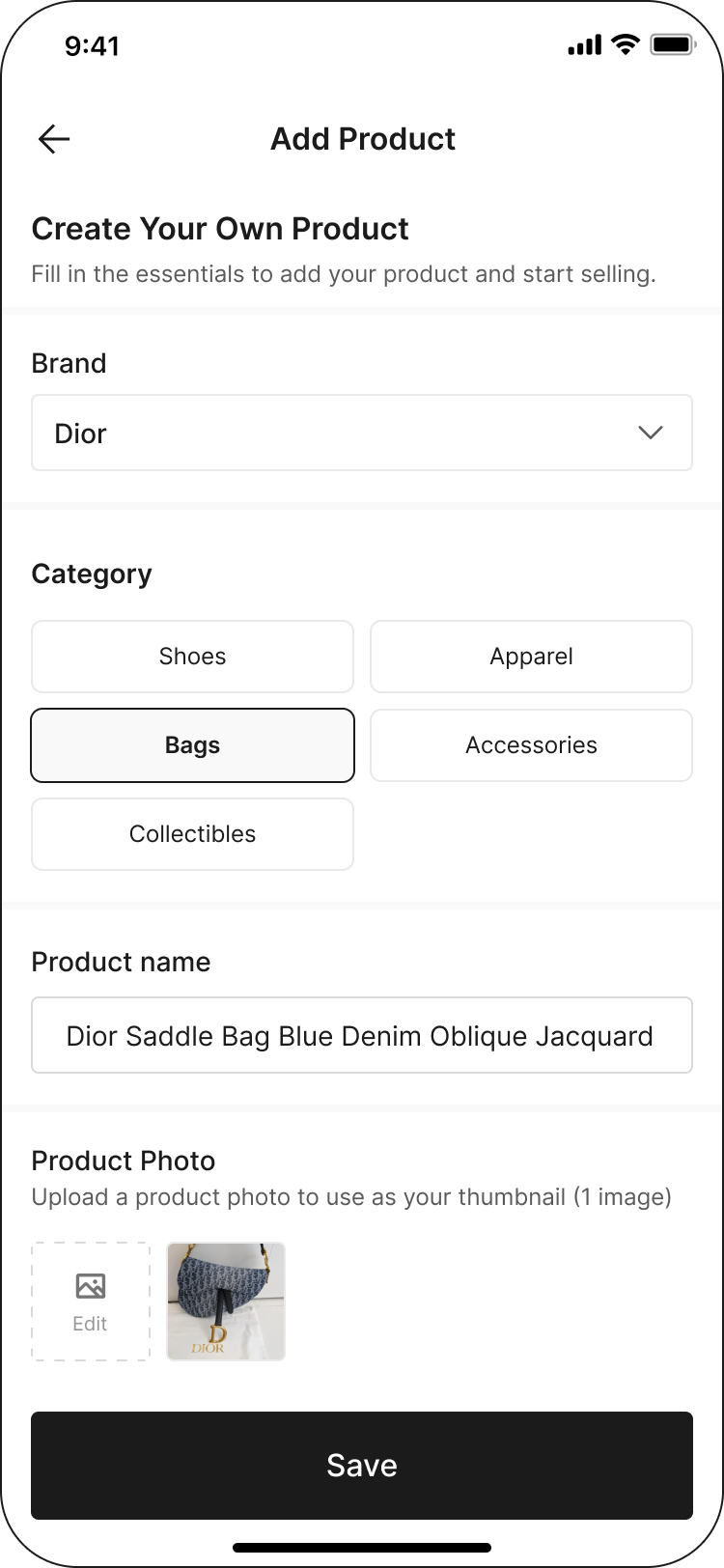
- If you can’t find the product, Tap “Create New Product”
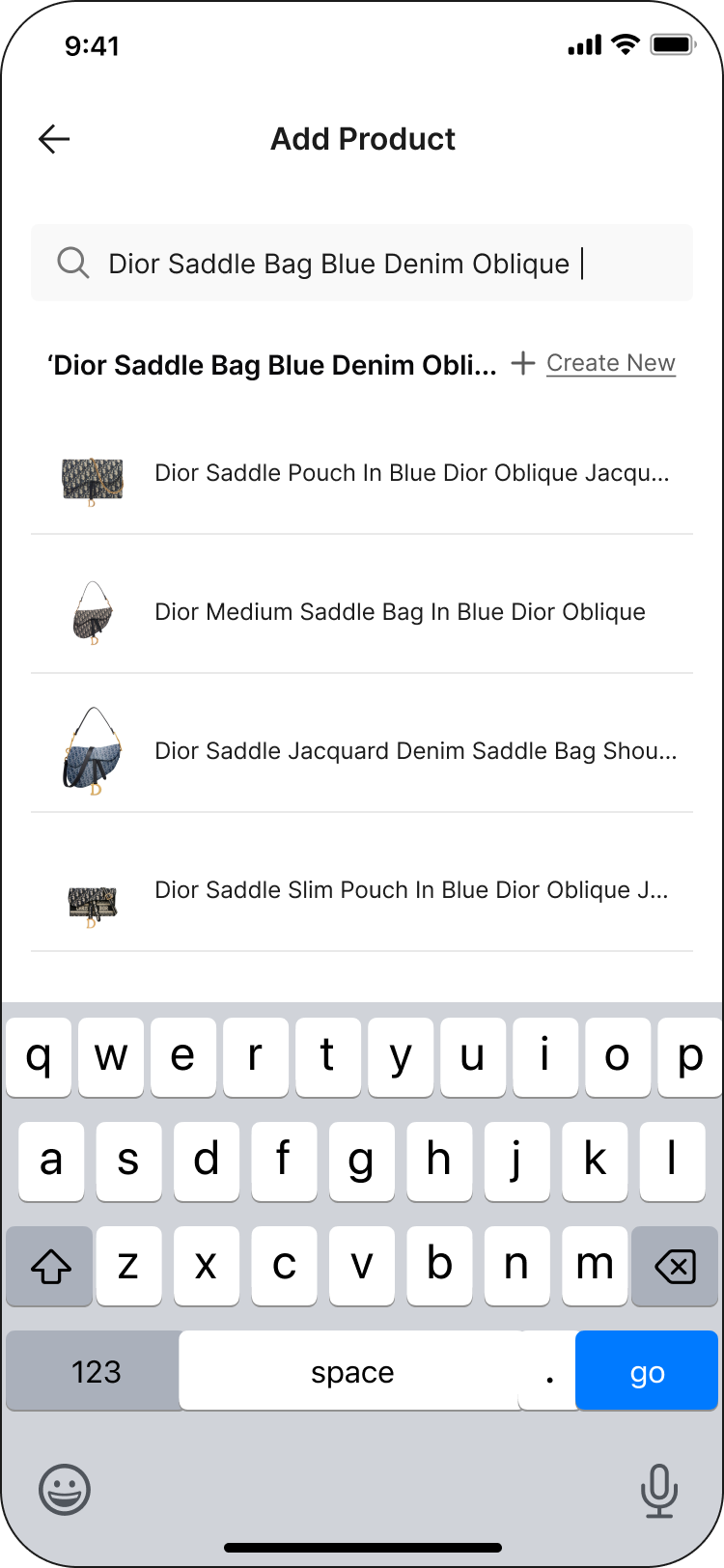
and fill in the essentials:
Brand (You can add a new brand if needed)
Category
Product Name
Thumbnail Image
2. Product Condition: Select Brand New or Pre-owned.
Note: If the product is Brand New, you can set the quantity to more than 1
3. Set Your Price.
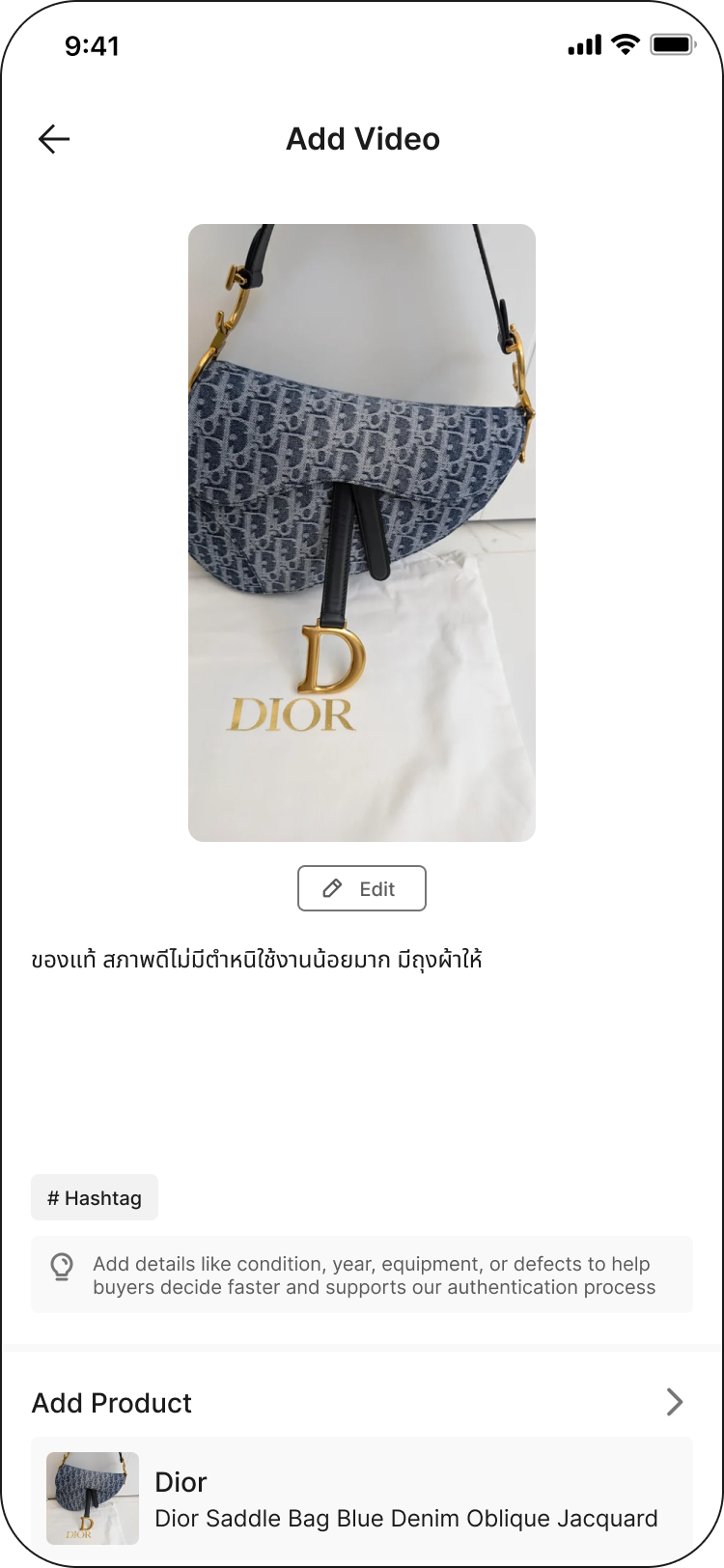
4. Write Your Caption (Max 350 characters): Include all necessary information
and notable defect (if any)
Step 4: Review and Submit
Double-check your video, price, and product details.
Tap “Post”
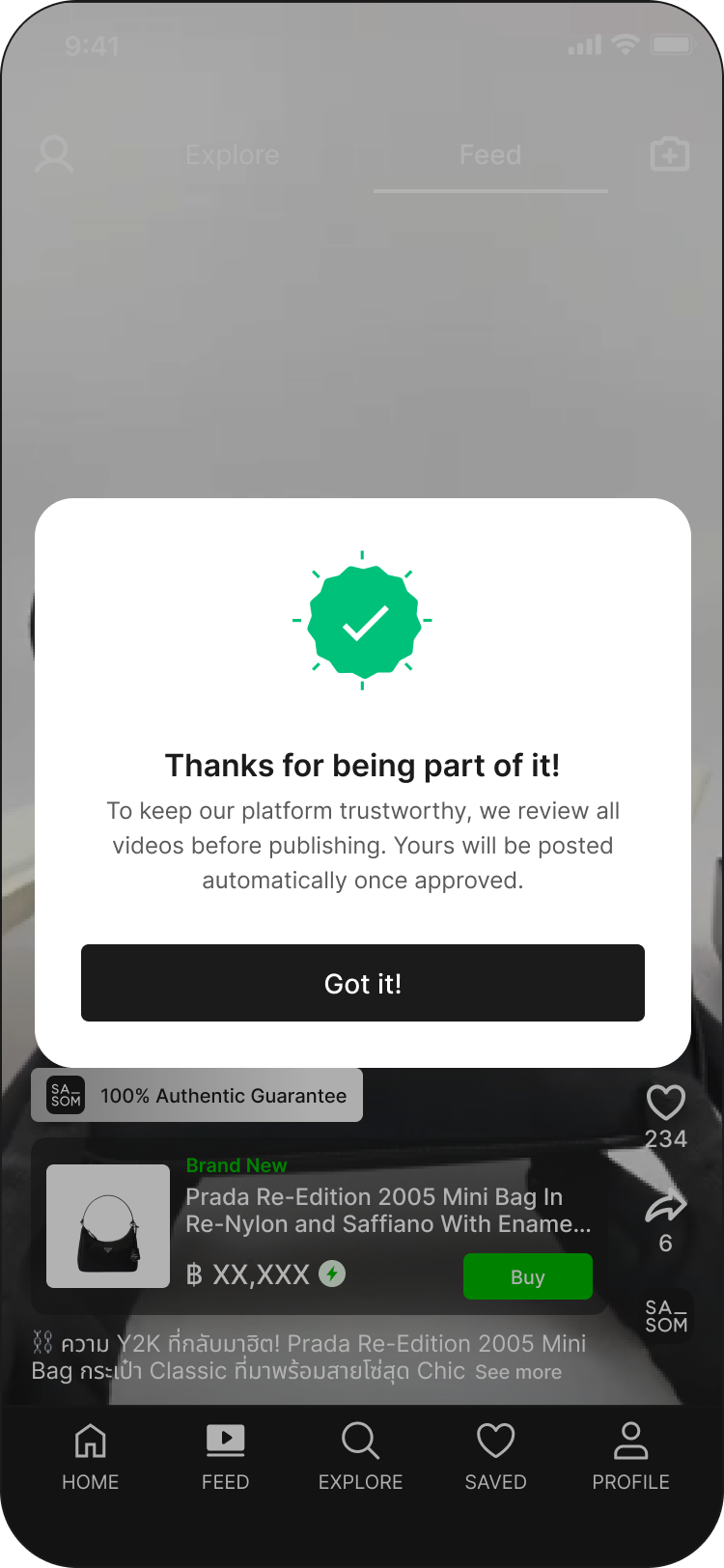
Your video listing will be reviewed by SASOM’s Operations team before it goes live.