How to manage extra/missing items in your storage request?
On SASOM app
Step 1: Manage Extra Items - Set Price
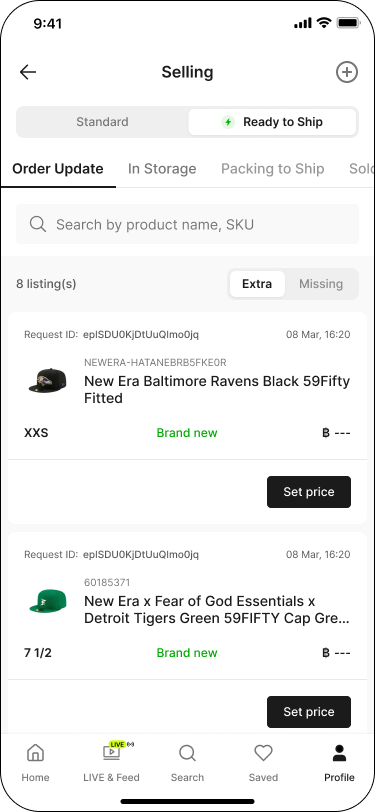
Items sent in addition to those listed in your storage request will be marked as Extra Received.
You need to set a selling price for these items to create listings. Follow these steps:
Go to the Profile tab, then under Selling, tap into Pending.
Switch the toggle to 'Ready to Ship', then go to the 'Order Update' tab.
Tap the 'Extra' sub-tab to view extra items in the list.
Tap 'Set Price' for each item.
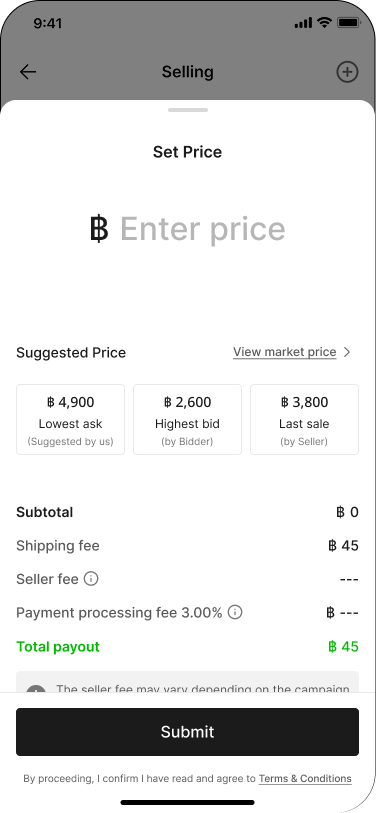
Enter your desired price — reference the Suggested Price shown and review the fee breakdown, then tap 'Submit'.
Step 2: Check Missing Items
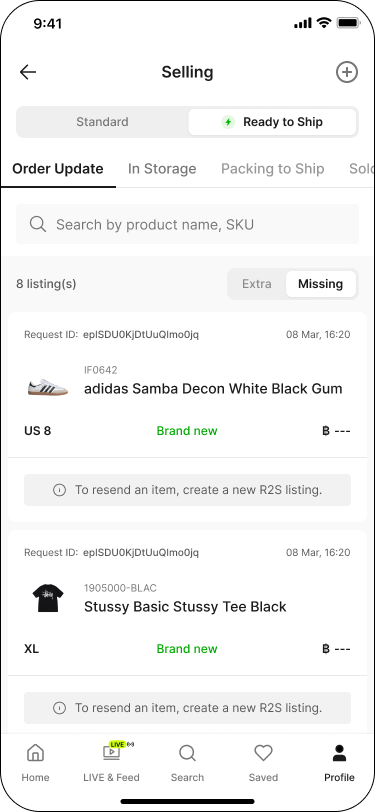
Items marked as Missing in your request will not be listed for sale.
If needed, you can create a new storage request and send the missing items to SASOM again.
To check missing items:
Go to the Profile tab, then under Selling, tap into Pending.
Switch the toggle to 'Ready to Ship', then go to the 'Order Update' tab.
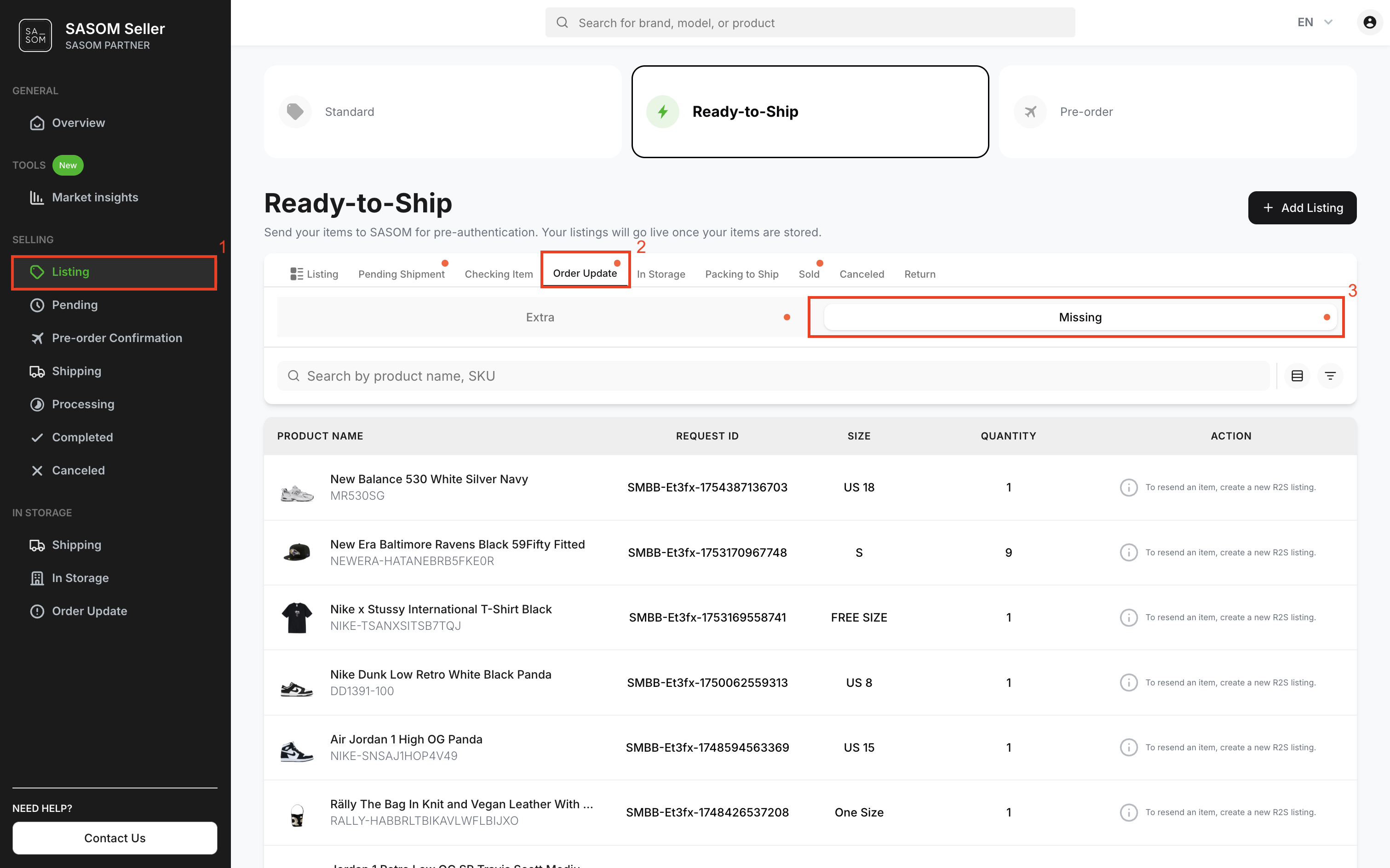
Tap the 'Missing' sub-tab to view missing items in the list. Each item shows a note: 'To resend an item, create a new listing.'
On SASOM Seller Center
Step 1: Manage Extra Items - Set a Price
Items sent in addition to those listed in your storage request will be marked as Extra Received.
You need to set a selling price for these items to create listings. Follow these steps:
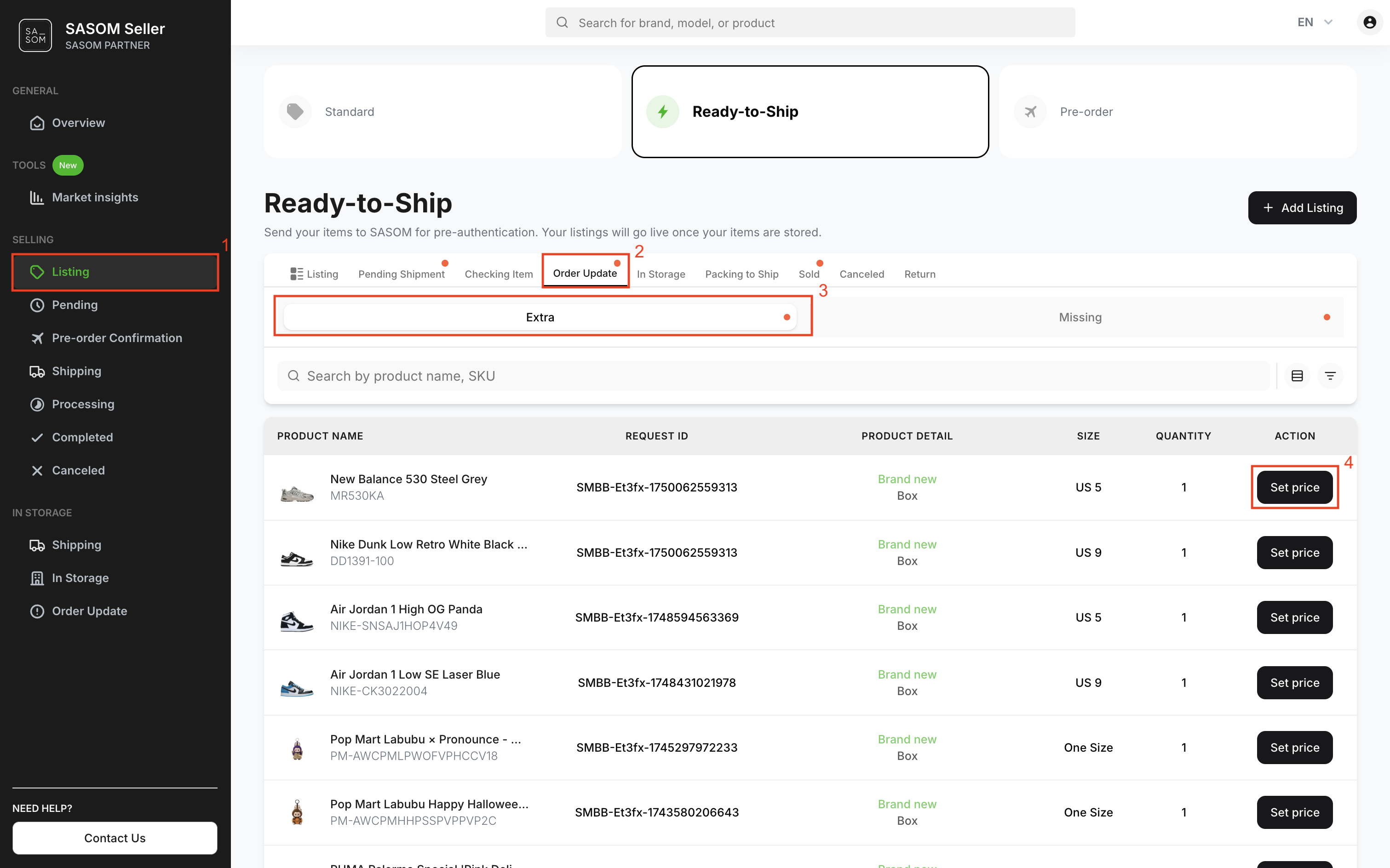
- Go to 'Listing' menu.
- Select 'Ready-to-Ship' and go to the 'Order Update' tab.
- Select the 'Extra' sub-tab to view extra items in the table.
- Click 'Set Price' for each item to set a selling price.
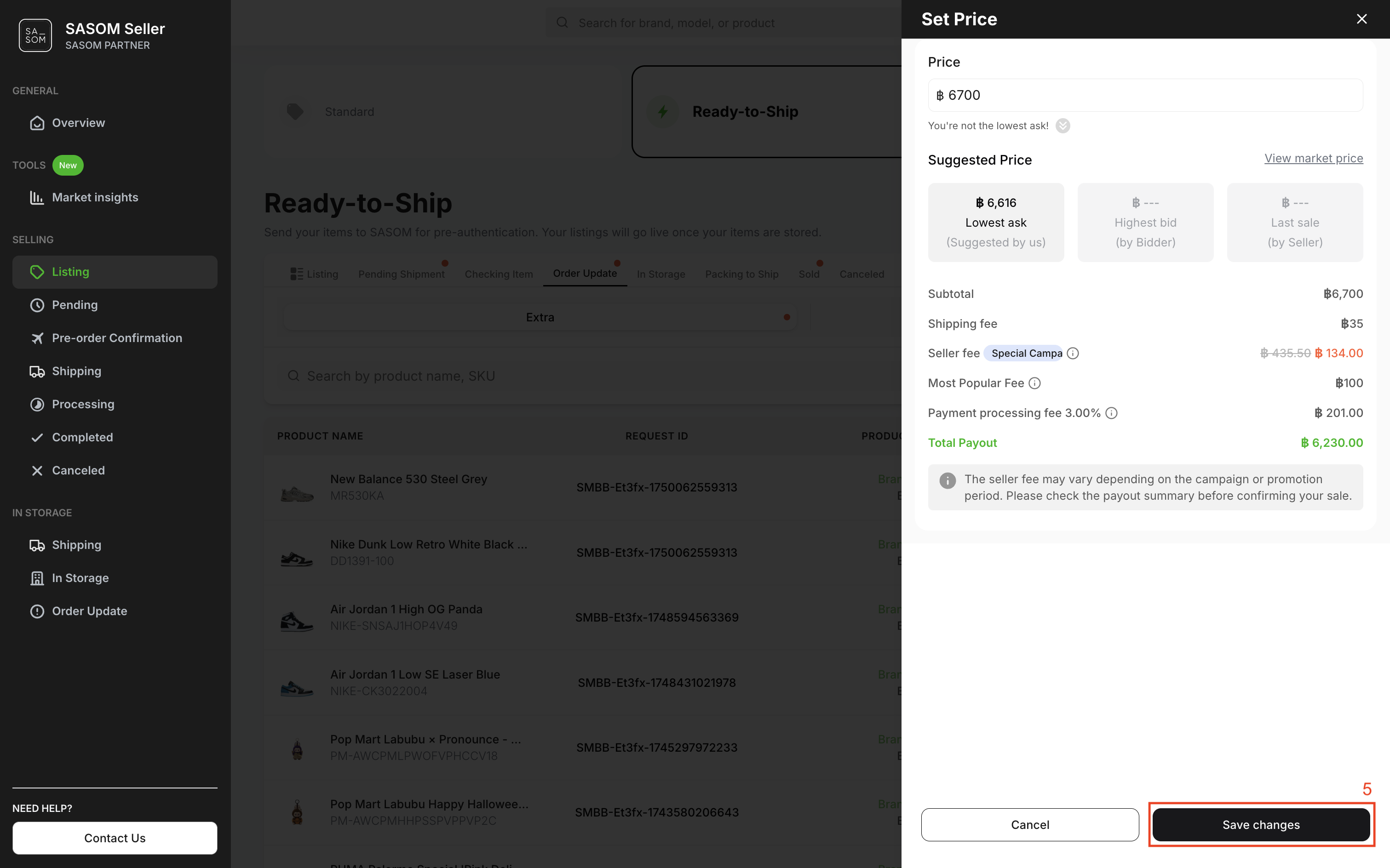
5. Enter your desired price in the price input field, then click ‘Save Changes’.
Step 2: Check Missing Items
Items marked as Missing in your request will not be listed for sale.
If needed, You can create a new storage request and send the missing items to SASOM again.
To check missing items:
- Go to 'Listing' menu.
- Select 'Ready-to-Ship' and go to the 'Order Update' tab.
- Select the 'Missing' sub-tab to view missing items in the table.