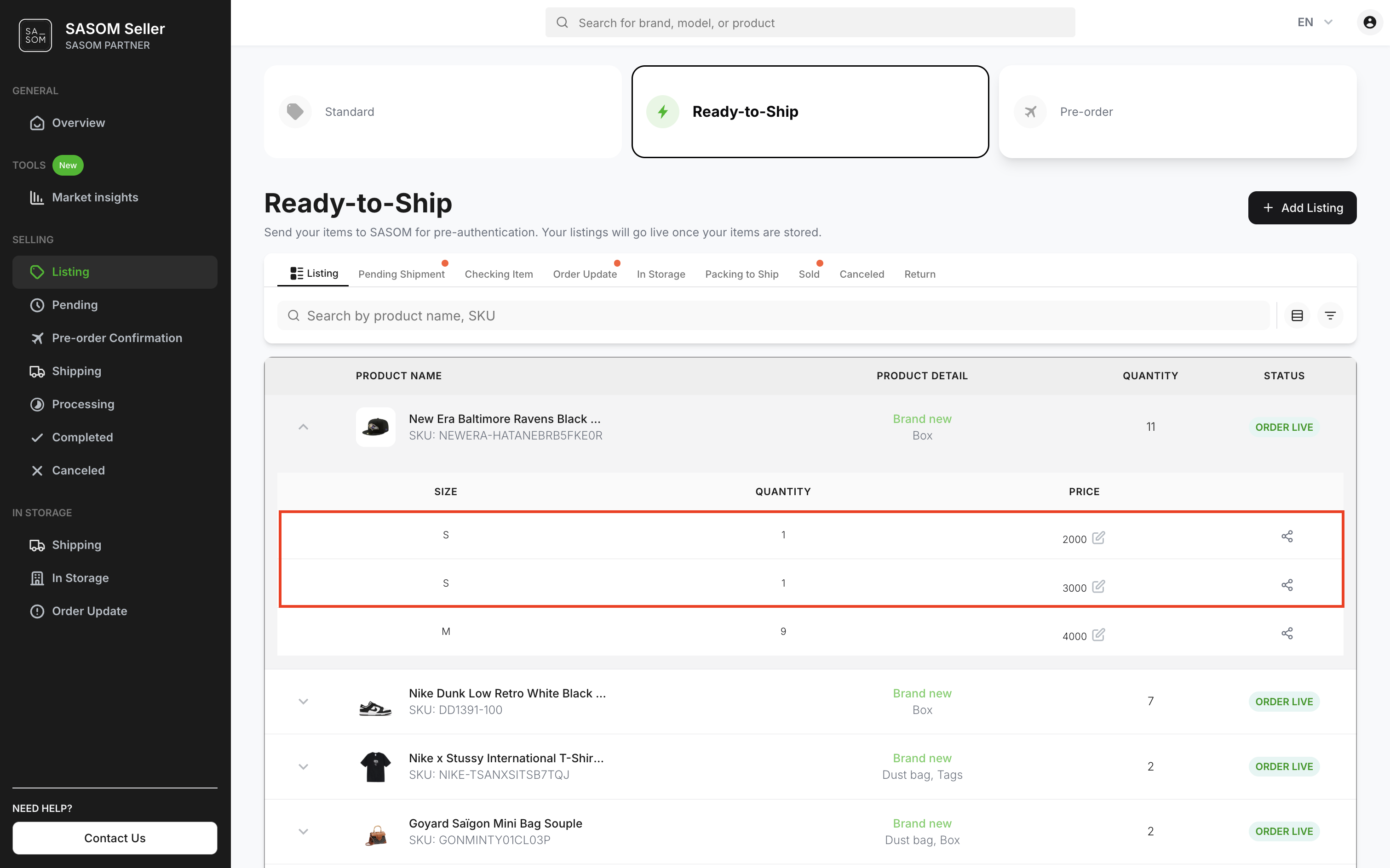
How to update price of your Storage items?
On SASOM app
Step 1: Update Storage Item Prices
Go to the Profile tab, then under Selling, tap into Listing.
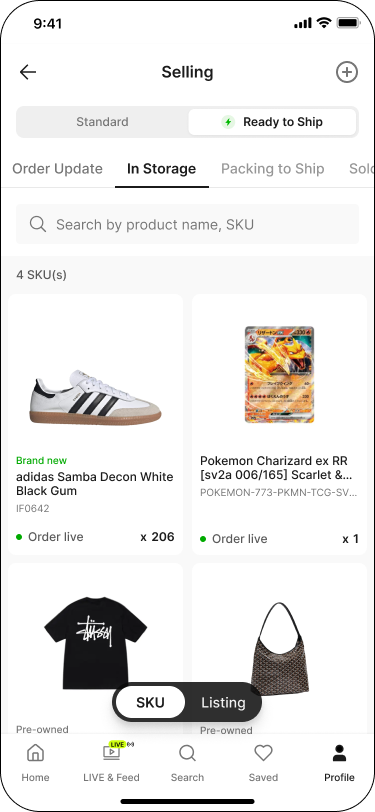
Switch the toggle to 'Ready to Ship', then go to the 'In Storage' tab.
Tap a product card to view its sizes, quantities, and prices in a table — or, in Listing view, tap a listing card directly to skip ahead to its Listing Details.
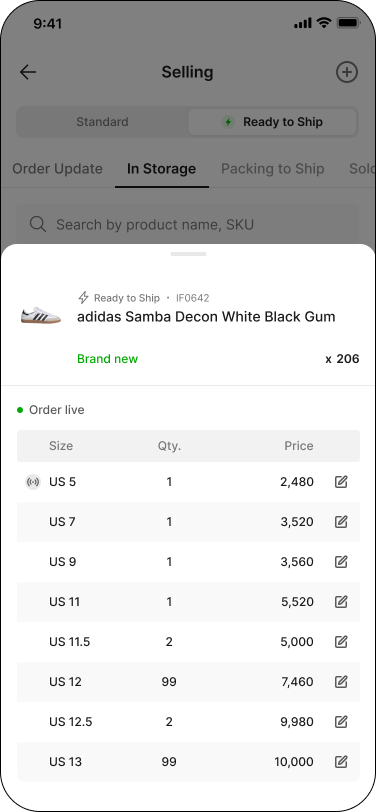
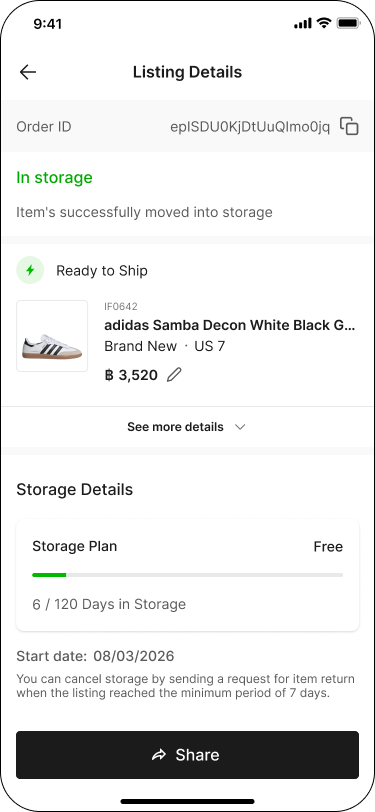
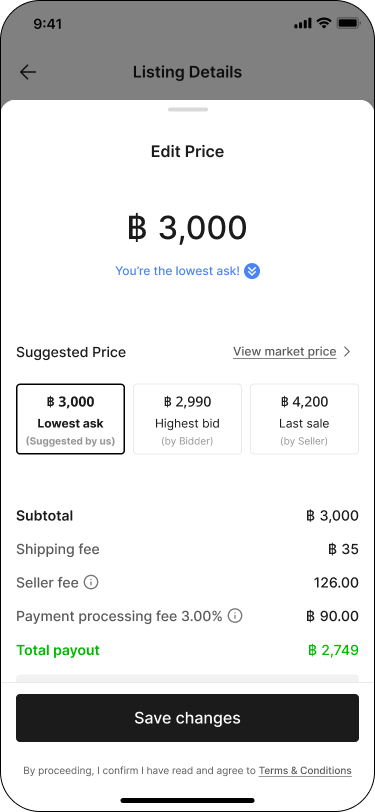
Tap a specific row to open its Listing Details, then tap the pencil icon next to the price to edit it.
Enter your desired price, then tap 'Save changes'.
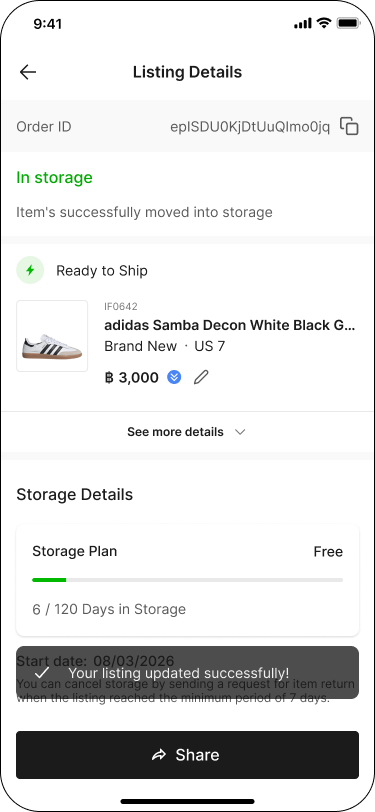
The Listing Details screen reflects your updated price.
Note:
✳ All Ready-to-Ship items will be displayed and grouped by SKU, condition, accessories, and size.
✳ Items of the same size must have the same price. To set different prices for items of the same size, you need to create a new listing in order to submit a separate storage request.
On SASOM Seller Center
Step 1: Update Storage Item Prices
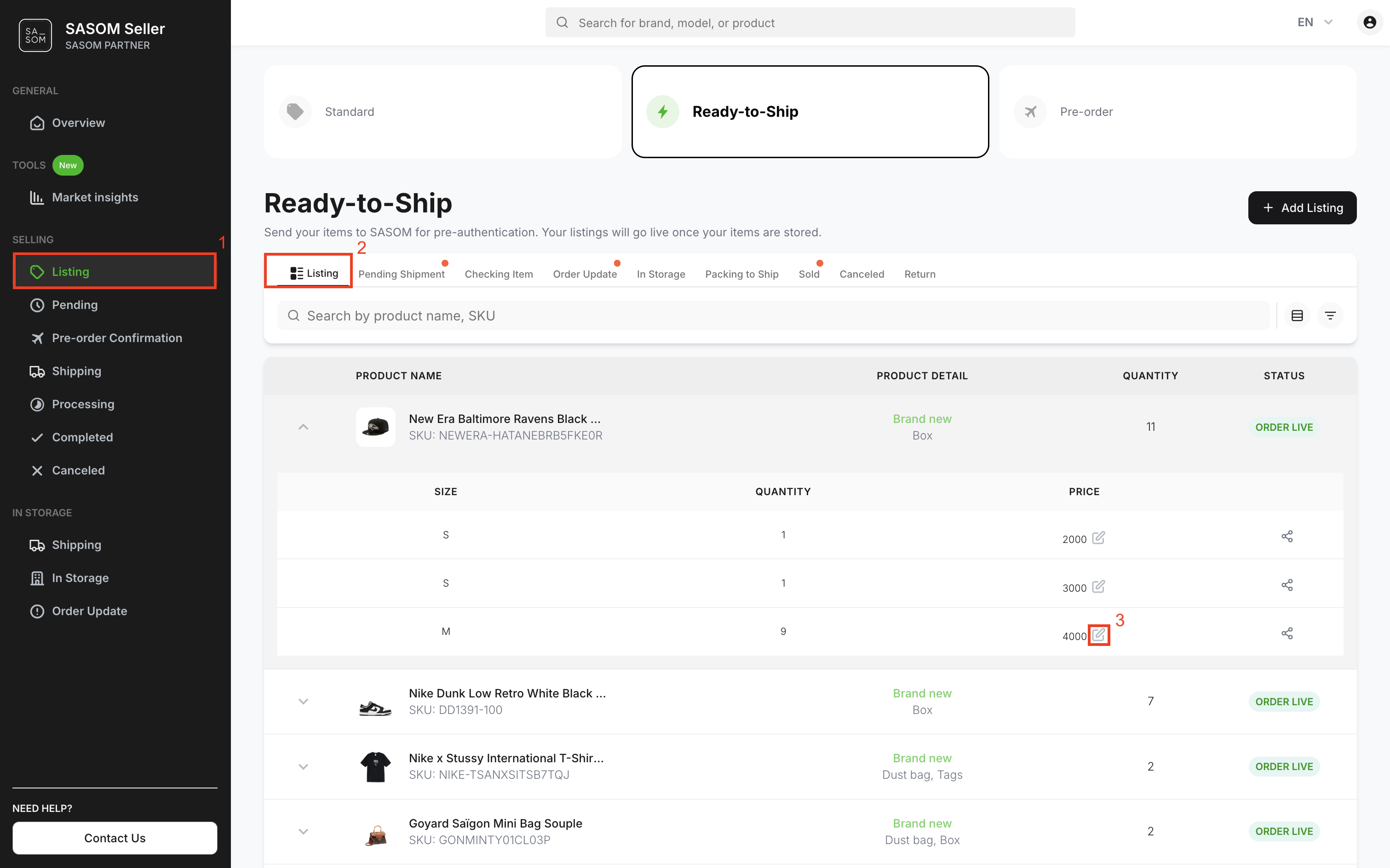
- Go to 'Listing' menu.
- Select the 'Ready-to-Ship' tab and the 'Listing’ sub-tab.
- Click the product in each row to view its sizes, quantities, and prices. Then click the pencil icon to edit its price.
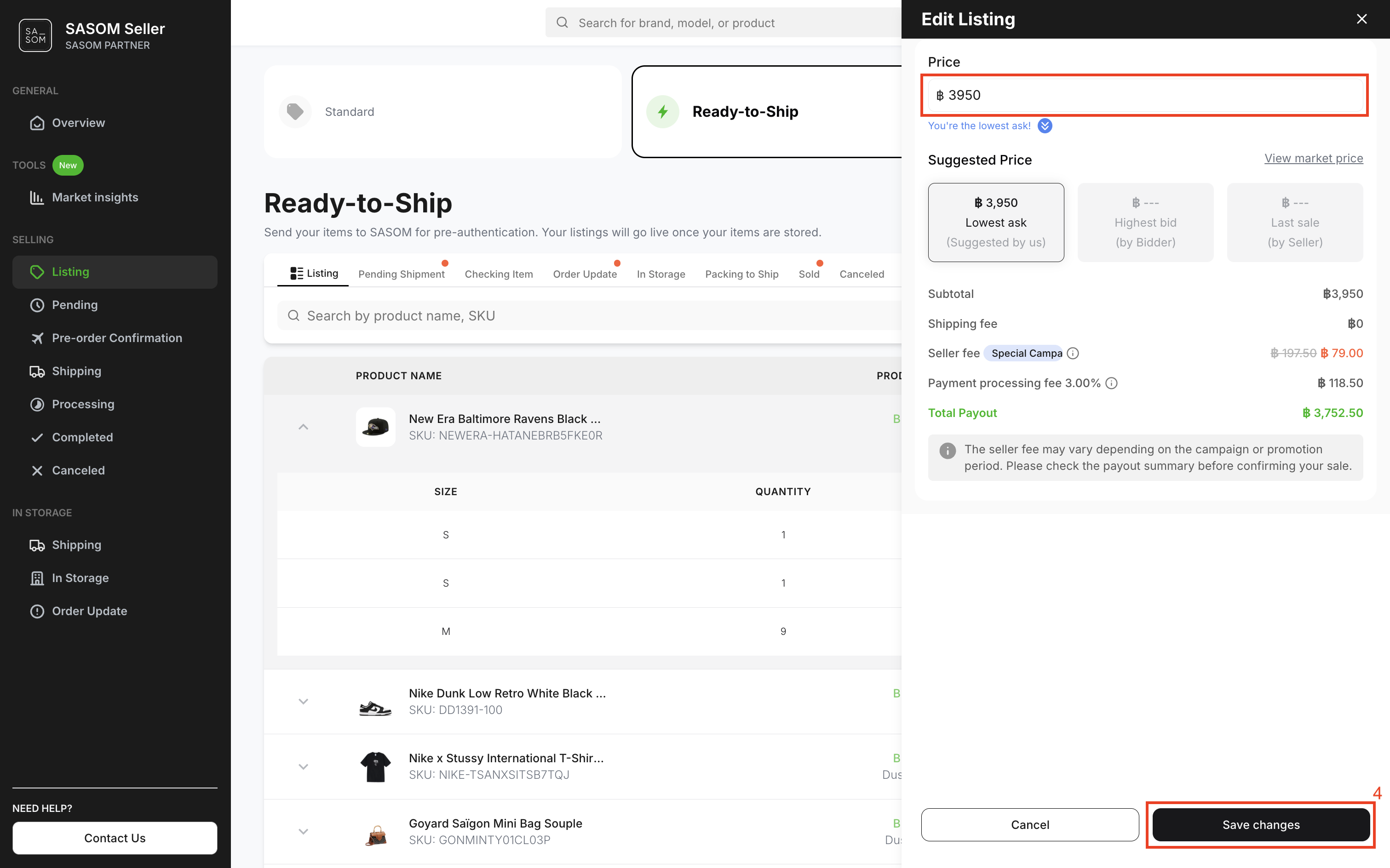
- Enter your desired price in the price field, then click 'Save Changes'.
Note:
✳ All Ready-to-Ship items will be displayed and grouped by SKU, condition, accessories, and size.
✳ Items of the same size must have the same price. To set different prices for items of the same size, you need to create a new listing in order to submit a separate storage request.