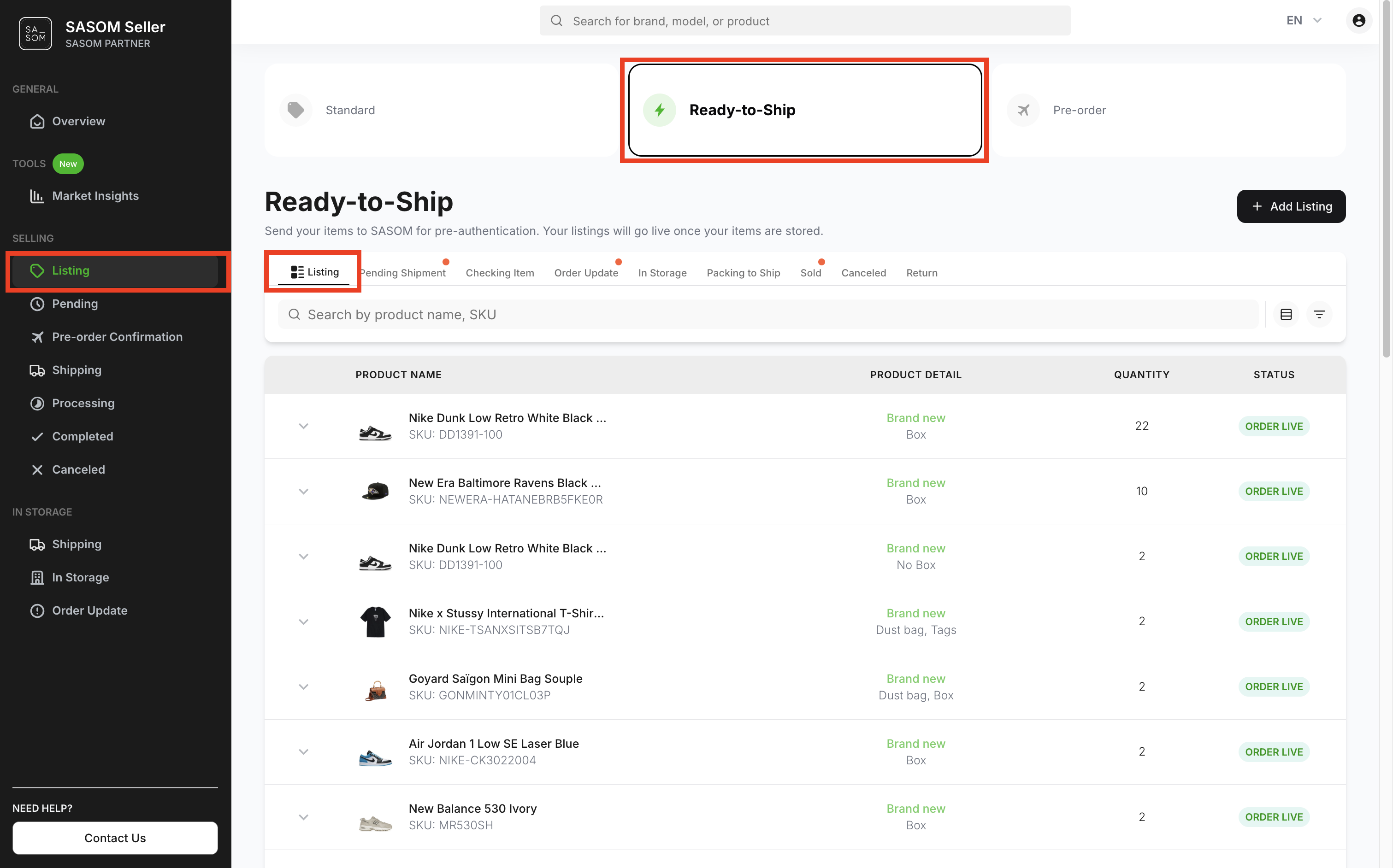
How to track status of your items in storage request?
On SASOM app
Step 1: Check Items Received
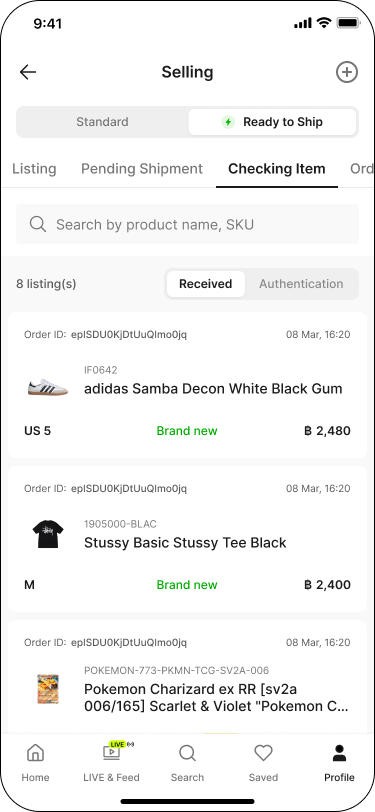
You can check the items that have arrived at the warehouse by following these steps:
Go to the Profile tab, then under Selling, tap into Processing.
Switch the toggle to 'Ready to Ship', then go to the 'Checking Item' tab.
Tap the 'Received' sub-tab.
Items that have arrived at the warehouse appear in the list below.
Step 2: Check Authenticated Items
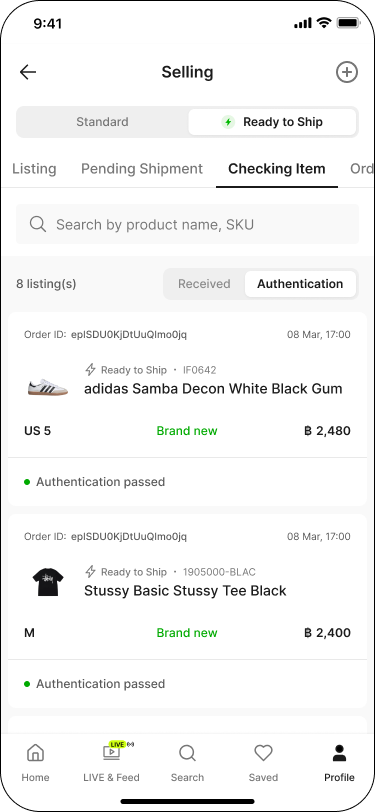
After arrival, items will go through authentication. You can view authenticated items as follows:
Go to the Profile tab, then under Selling, tap into Processing.
Switch the toggle to 'Ready to Ship', then go to the 'Checking Item' tab.
Tap the 'Authentication' sub-tab. Items that passed show as 'Authentication passed'.
Note:
✳ Items that fail authentication will be canceled and returned to you automatically.
✳ You can track returned items by going to the 'Return' tab.
Step 3: Check Items in Storage
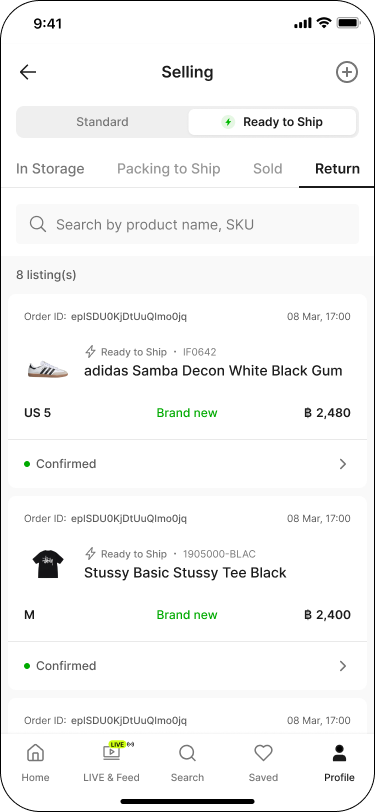
Once your items pass authentication, they will be stored in the warehouse. You can check their details and storage time as follows:
Go to the Profile tab, then under Selling, tap into Listing.
Switch the toggle to 'Ready to Ship', then go to the 'In Storage' tab.
Tap on each item to view its details.
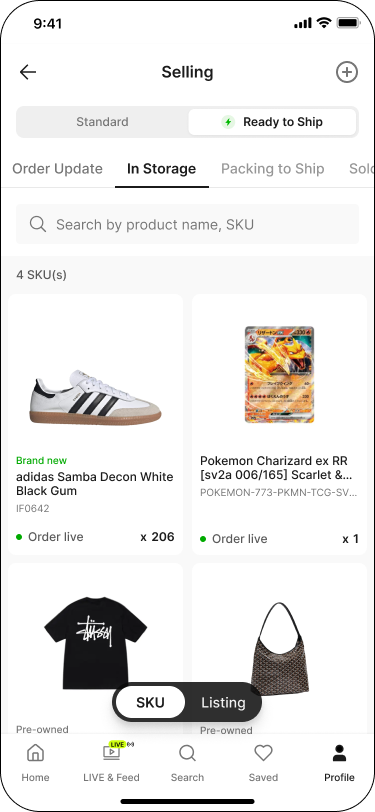
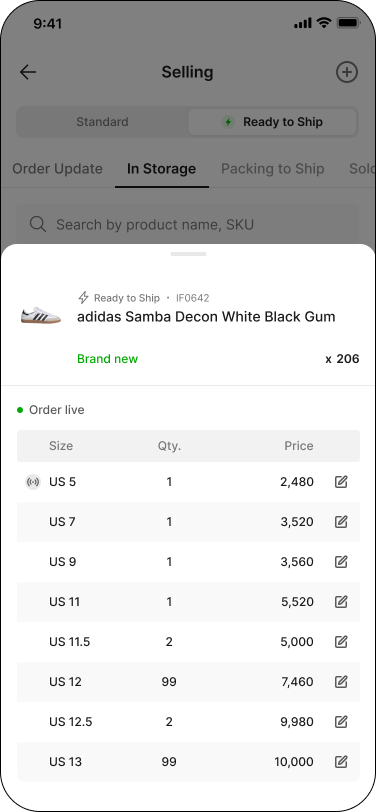
🎉 Congratulations! Your item is now listed for sale on SASOM — you can view and manage it here, in the 'In Storage' tab.
On SASOM Seller Center
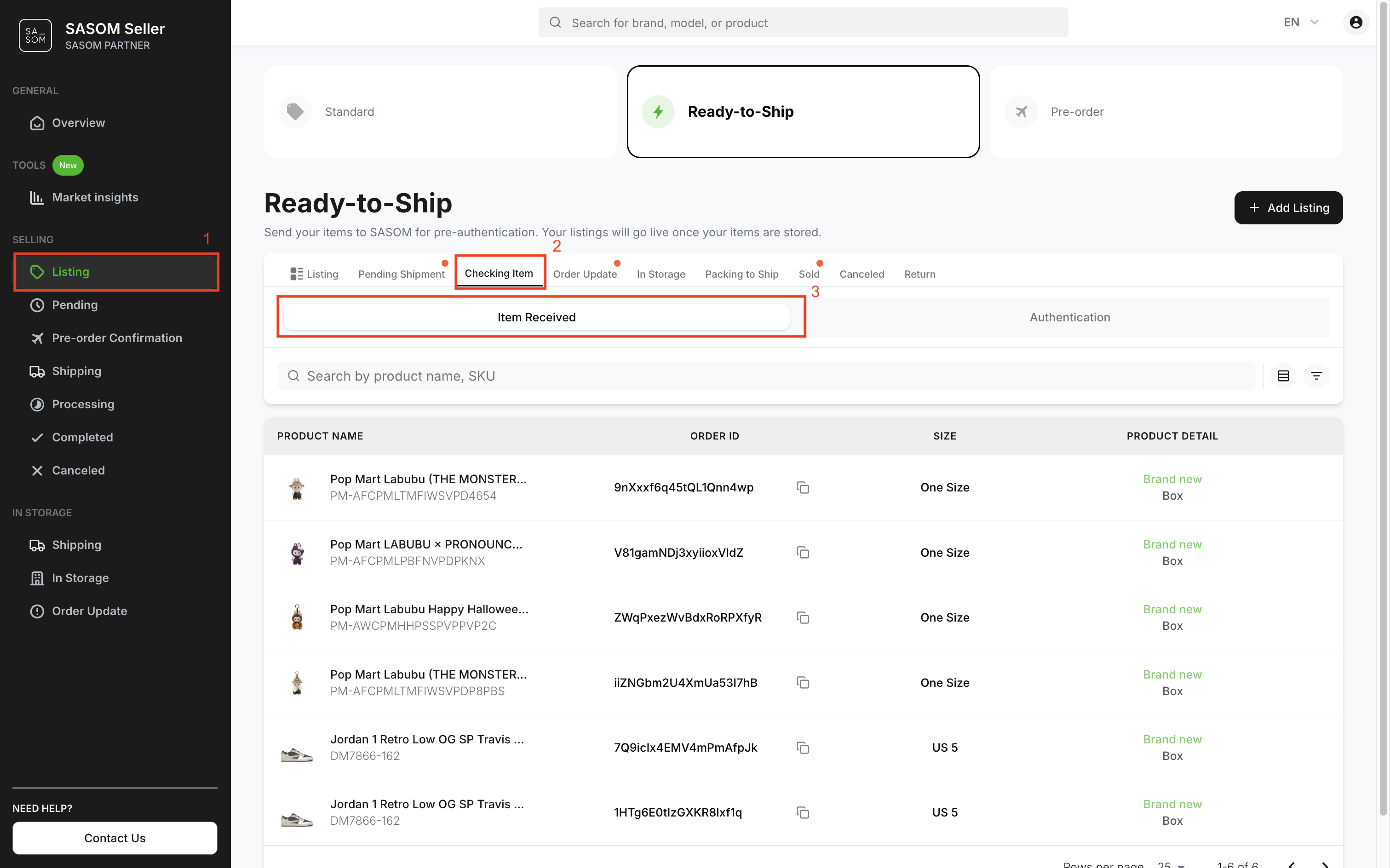
Step 1: Check Items Received
You can check the items that have arrived at the warehouse by following these steps:
- Go to 'Listing' menu.
- Select 'Ready-to-Ship' and go to the ‘Checking Item’ tab.
- Click the 'Item Received' sub-tab.
- Items marked as Item Received will appear in the table below.
Step 2: Check Authenticated Items
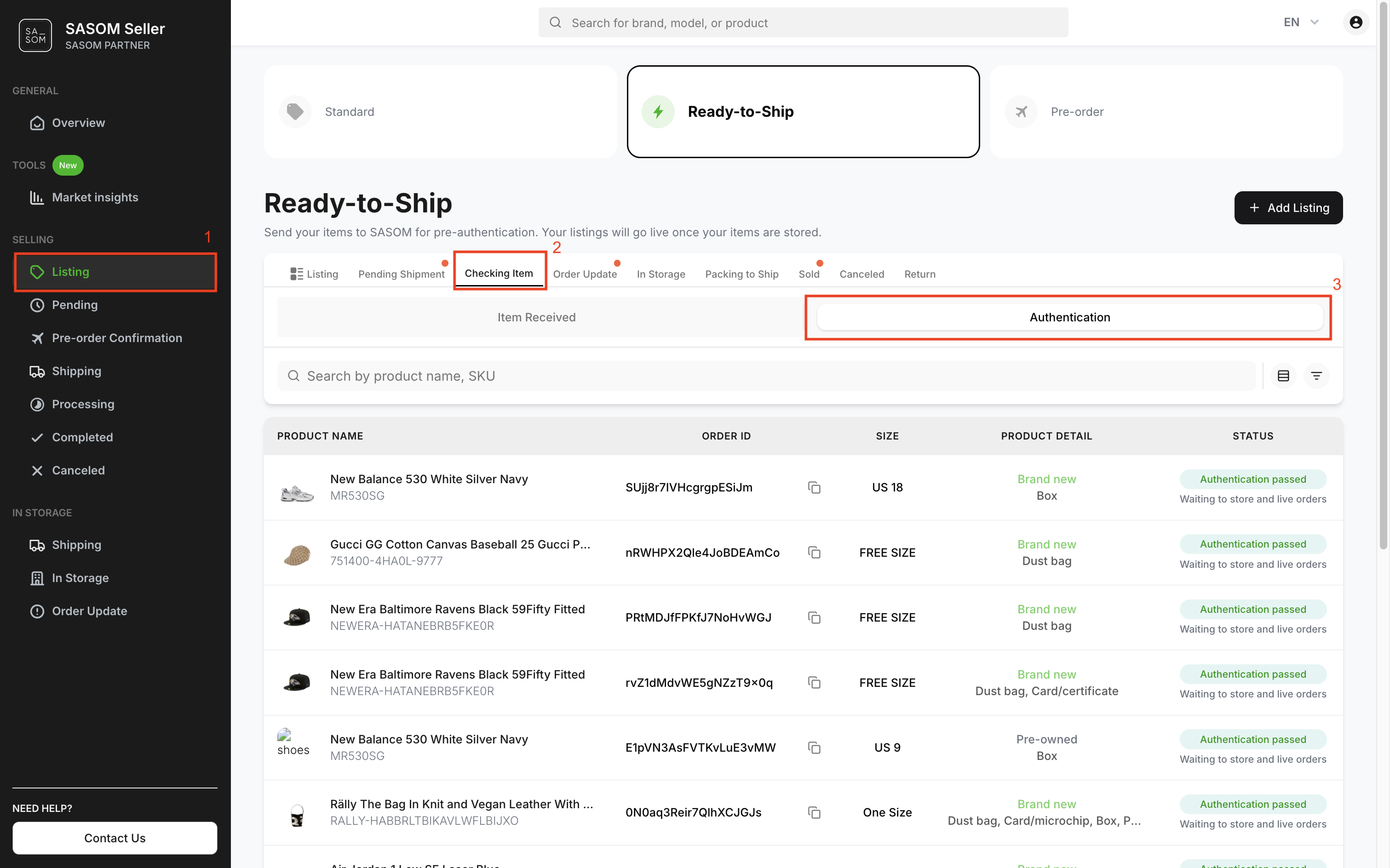
After arrival, items will go through authentication. You can view authenticated items as follows:
- Go to 'Listing' menu.
- Select 'Ready-to-Ship' and go to the 'Checking Item' tab.
- Click the 'Authentication' sub-tab.
Note:
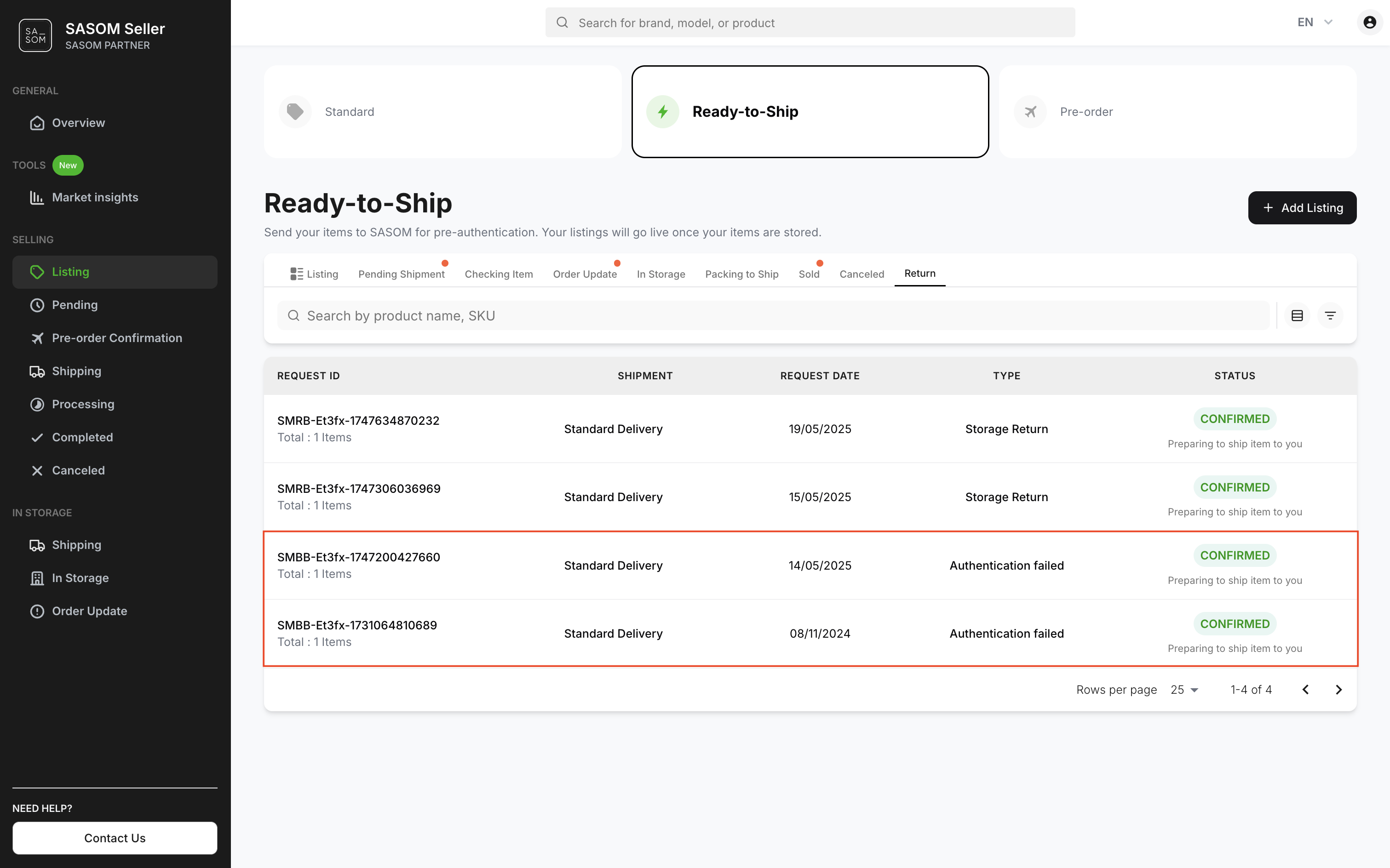
✳ Items that fail authentication will be canceled and returned to you automatically.
✳ You can track returned items by going to the ‘Return’ tab and viewing items marked ‘Authentication Failed’.
Step 3: Check Items in Storage
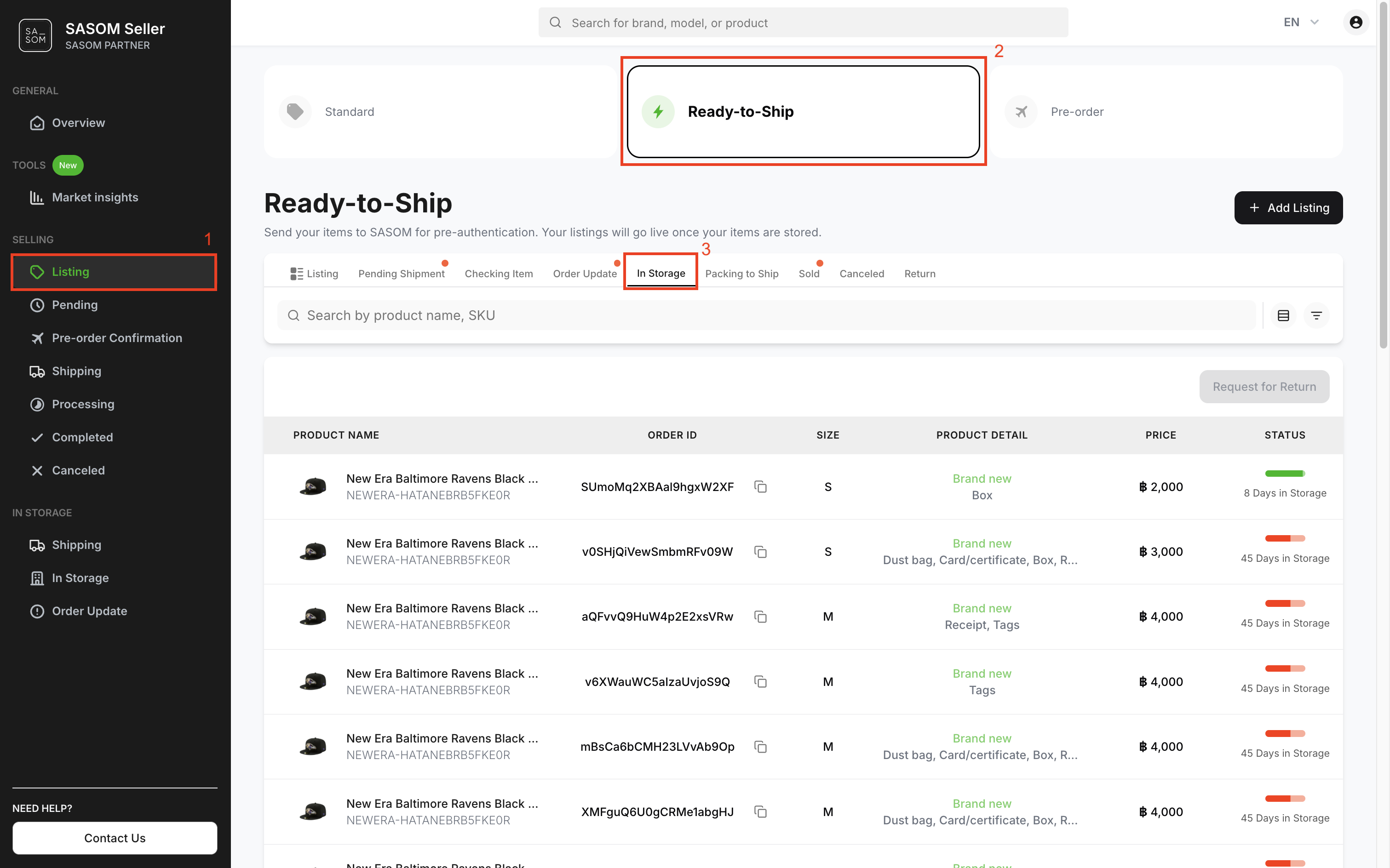
Once your items pass authentication, they will be stored in the warehouse. You can check their details and storage time as follows:
- Go to 'Listing' menu.
- Select 'Ready-to-Ship'
- Click the 'In Storage' tab.
- Click on each item to view its details.
🎉 Congratulations! Your item is now listed for sale on SASOM. You can view and manage your listings in 'Listing' under the 'Ready-to-Ship' tab.