Manage products during your LIVE
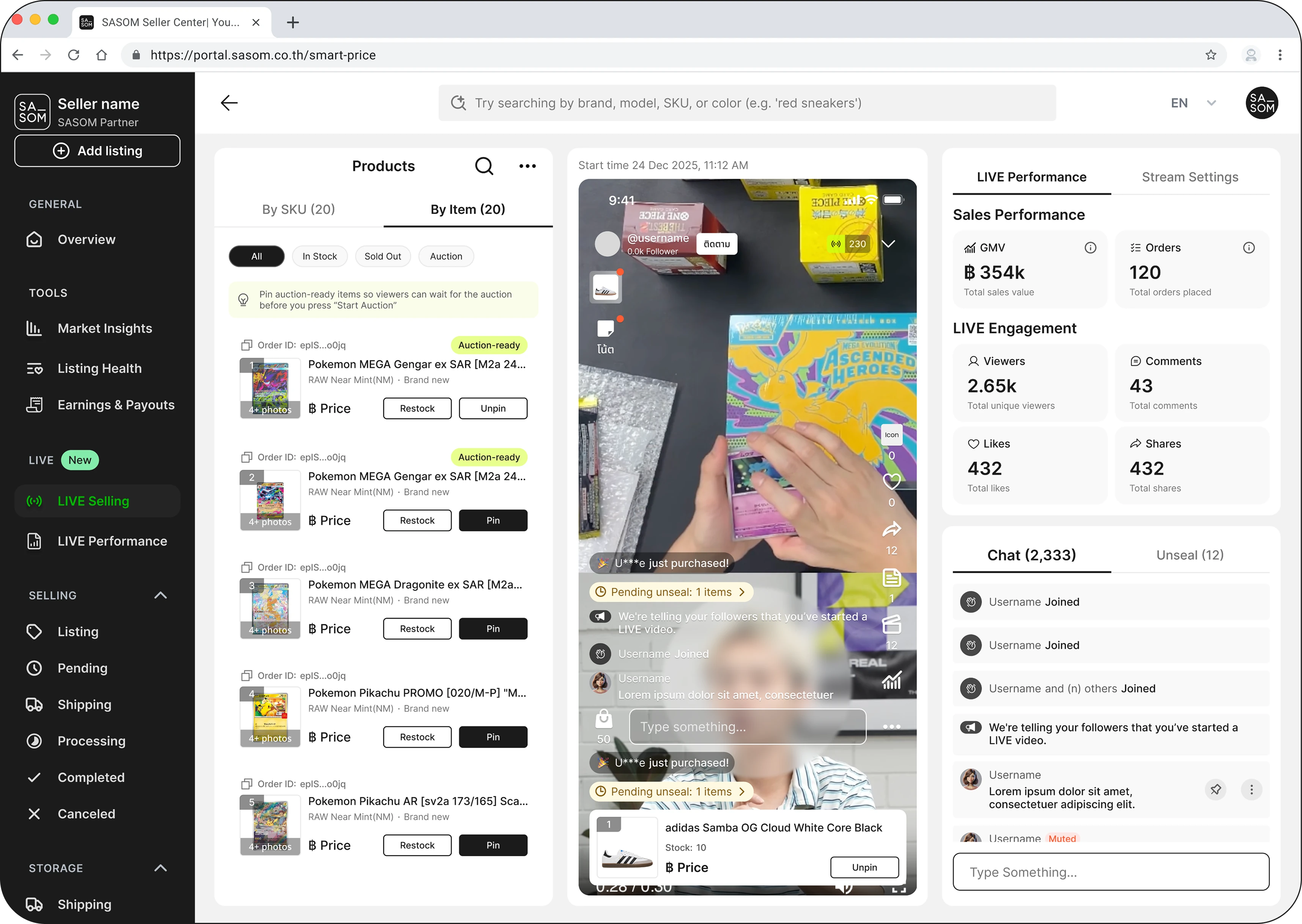
While you're live, the product panel is your control center — add items, adjust prices, restock, and pin whatever you're showing right now. This article covers the seller product actions during a stream.
Add products to your stream
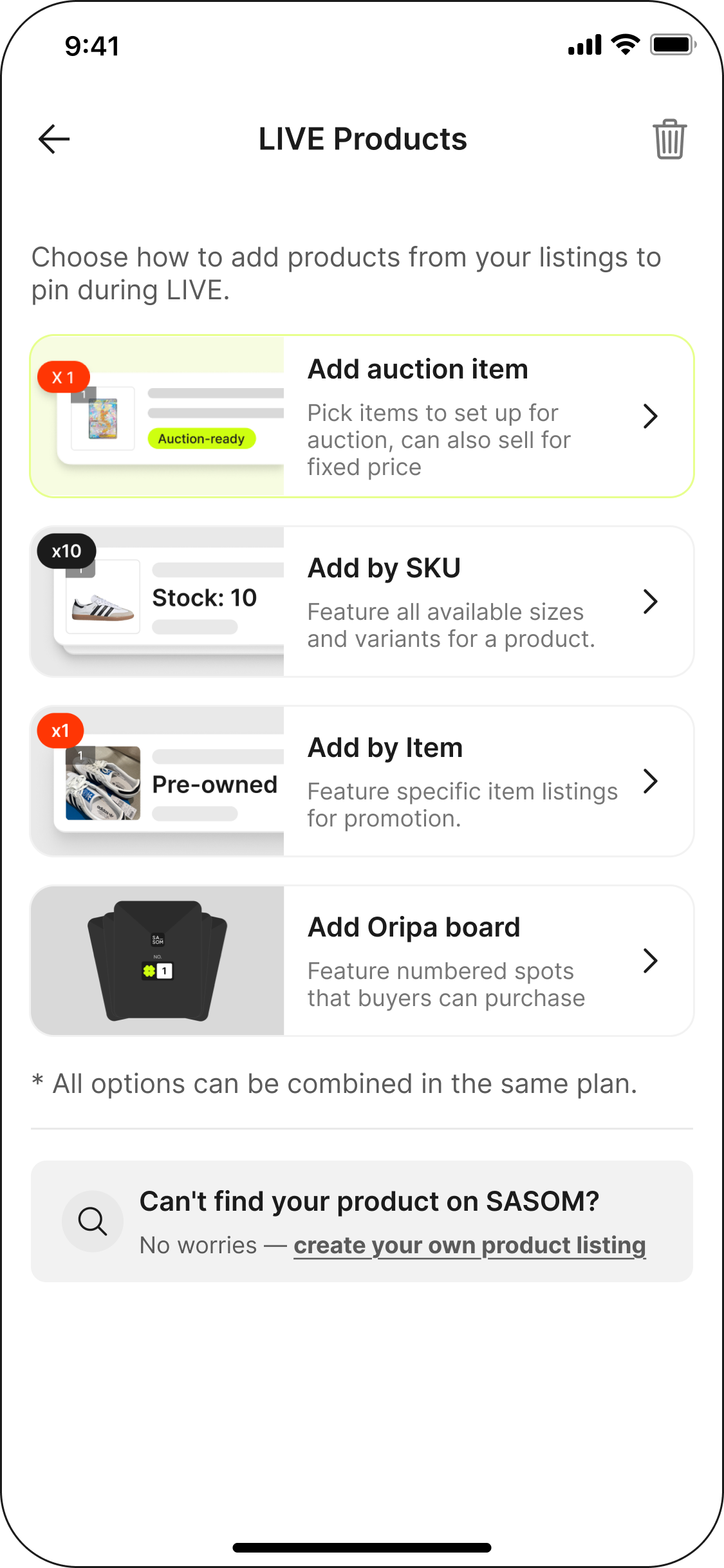
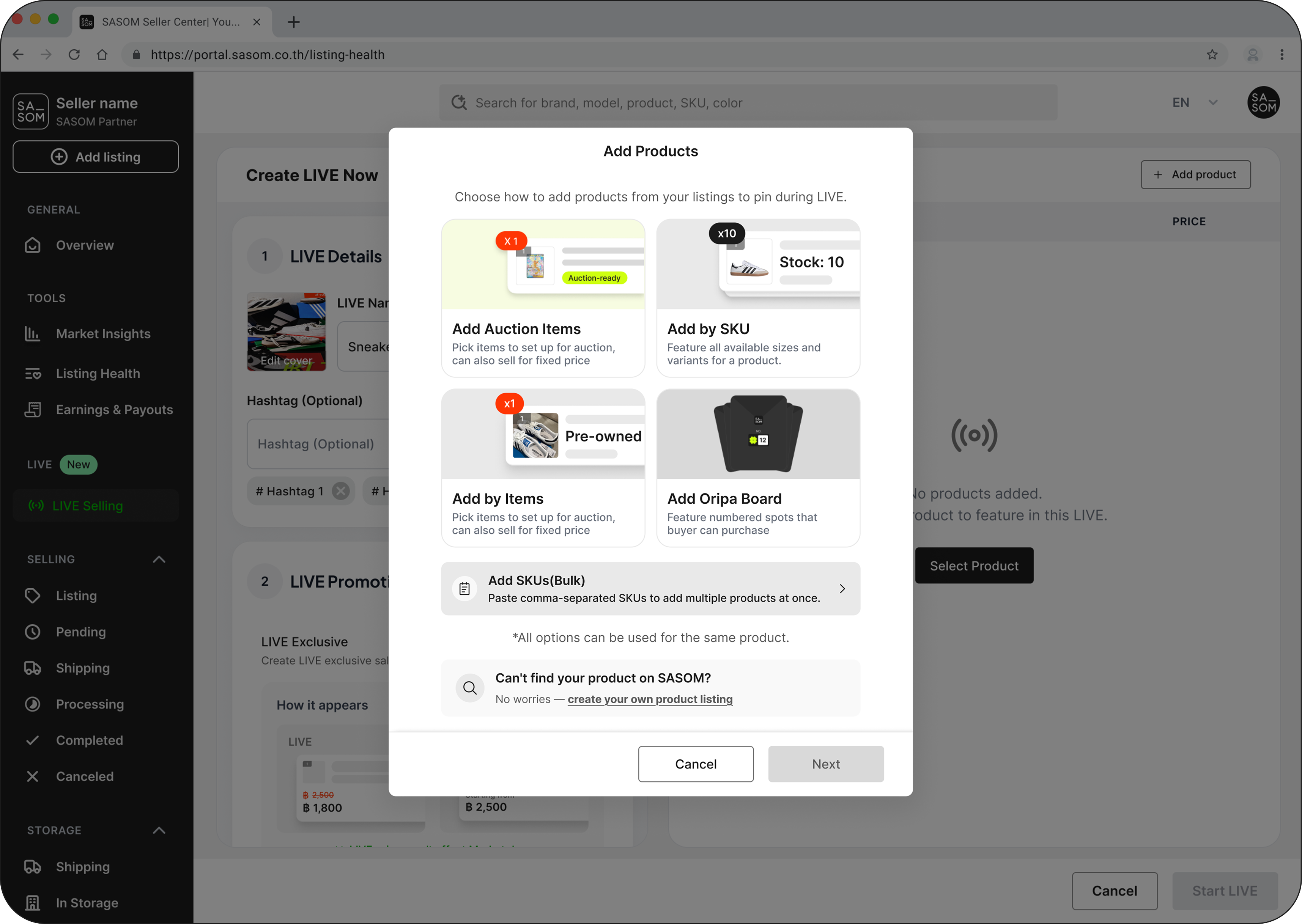
You can add items to a live stream in a few ways:
Add by SKU — pick one or more products from the SASOM catalog. You can multi-select, and select everything before the stream starts to line up your lineup in advance.
Add by Item (order) — add a specific order you already hold, by its order.
Add for Auction — put an eligible item up for live bidding. (The item needs a linked source order — see Run a live auction.)
Add Oripa Board — add a Ready Oripa board (see Run a SASOM Oripa board).
Manage items while live
For items on your list you can:
Edit Price — change an item's price on the fly.
Delete — remove an item from the stream.
Add items — support all product types
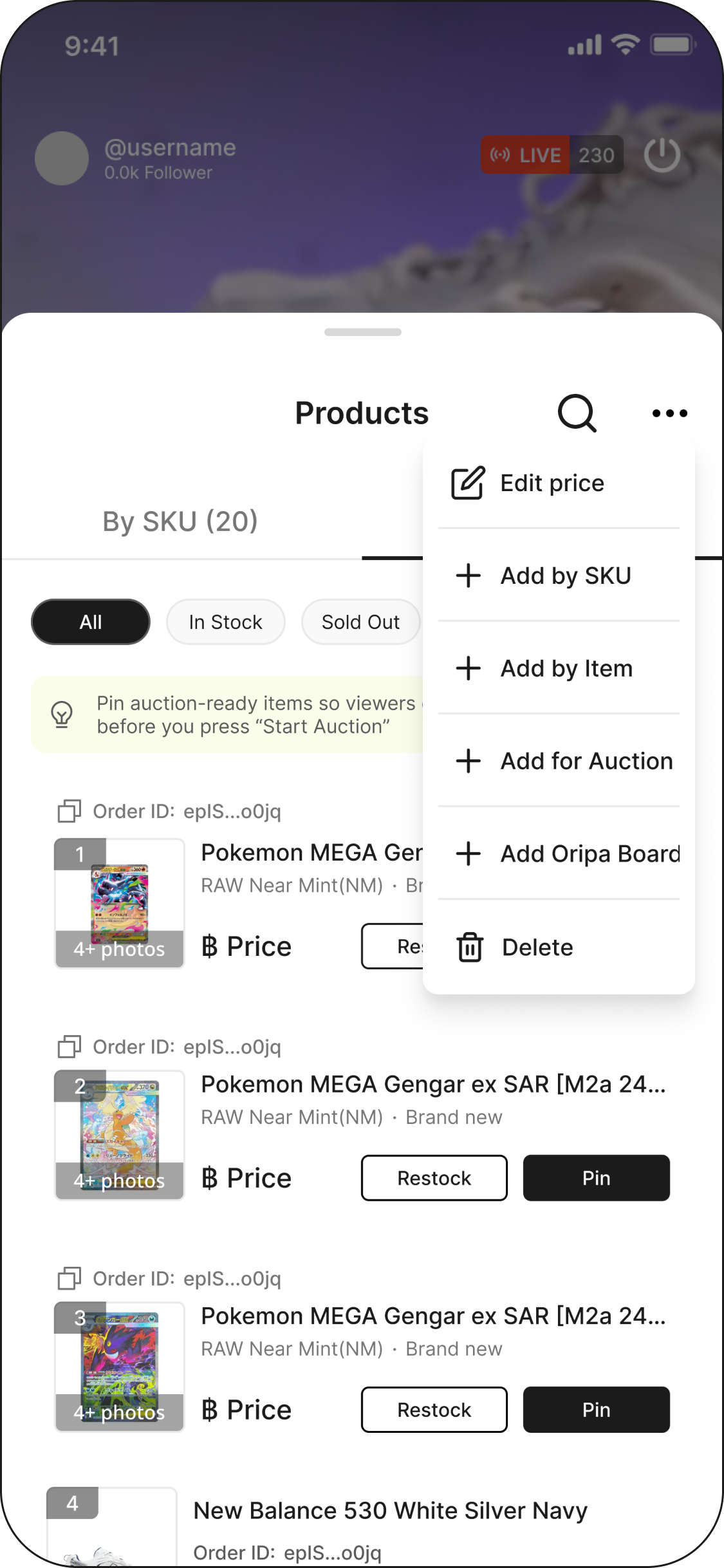
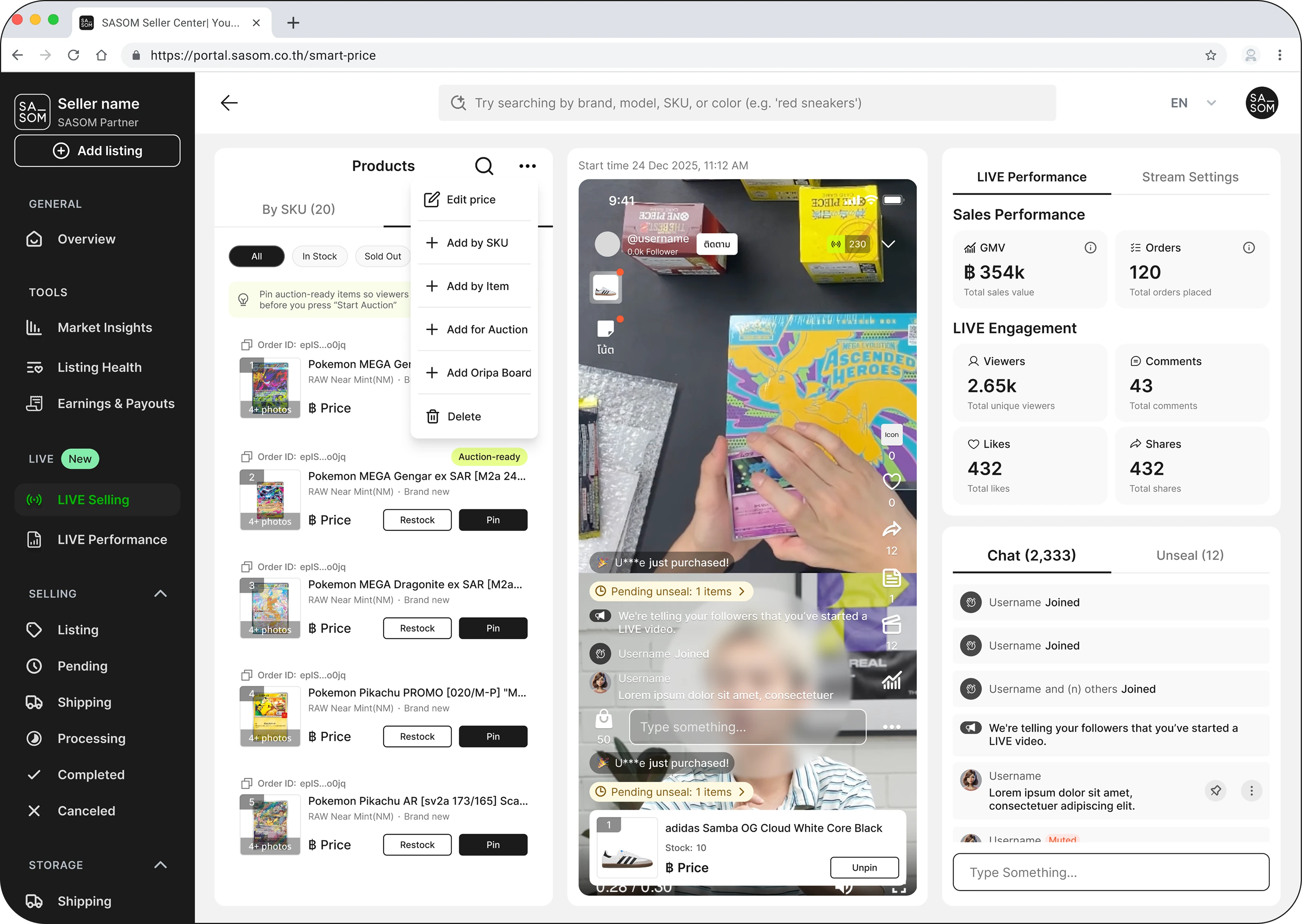
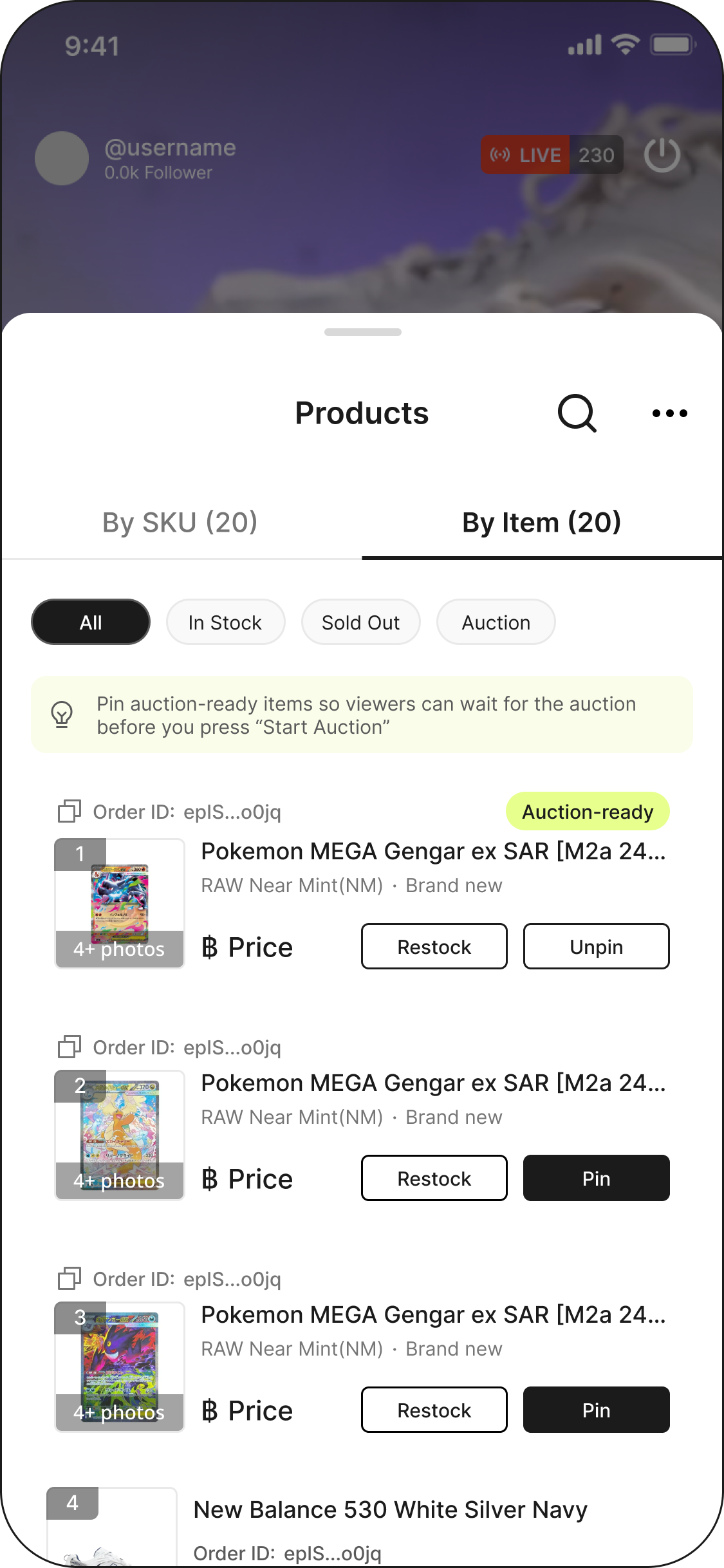
Restock — update available stock for a product.
Pin / Unpin — pin the item you're talking about so it shows on screen for buyers; unpin when you move on.
💡 Tip: Pin the product you're presenting so buyers can tap straight through to buy while you talk about it.
Official vs. Unofficial SKU (and approval)
When you add a product, it's one of two kinds:
Official SKU — links to an existing product already in the SASOM catalog.
Unofficial SKU — a new product entry you create on the spot when the item isn't in the catalog yet.
An unofficial SKU goes through a quick review: its status moves from Pending → Approved (or Rejected). While it's pending, it shows a yellow "Pending approval" badge; if it isn't approved it shows a red "Rejected" badge. Approved items sell like any other product.
See also