How to Run a SASOM Oripa board
🃏 For trading-card (TCG) sellers.
SASOM Oripa is a live trading-card game where you sell numbered spots in a sealed set of real cards. A buyer picks a number, pays, and you open that exact envelope live on stream. Every spot gets a real card — some hold a big chase card, the rest hold standard cards, packs, or bundles. Nobody walks away with nothing.
This article takes you end to end: how Oripa stays fair, setting up and submitting a board, prepping your envelopes, running the reveal live, and shipping in to SASOM.
Who can run Oripa
Any seller who already has LIVE seller access can request an Oripa board — it isn't invite-only. Access is granted per board: you submit a board, SASOM reviews it, and only an approved board can go live. You can have up to 3 active or pending boards at a time.
How SASOM keeps Oripa fair
Oripa's whole appeal is that no one can rig the outcome — and that's built into how SASOM operates it. Say this on stream; it's your strongest trust signal.
Dual-blind draw. SASOM seals each real card — pre-printed with a hidden QR — inside a Holo-sealed envelope before it reaches you, so you never know which card is in which envelope. You then apply the outer number stickers in your own secret order, so SASOM can't predict which number holds which card. Neither side can see the other's layer, so neither side can rig a pull.
You never pick the prize. On stream, the system reads the card's QR and fills in the result — you only scan and confirm.
Every board is reviewed before it can go live. A board must pass SASOM review (Review → Ready) before you can add it to a stream.
Fair value mix. SASOM reviews each board's value mix before approving so the odds are honest.
Seals stay intact. Every Holo seal stays sealed until the live reveal — a broken seal voids the pull.
Authentication is the moat. You don't ship to buyers yourself. Every sold card comes back to SASOM, where it's authenticated and its QR checked against the logged prize, before SASOM ships it to the buyer.
Part 1 — Set up & submit your board
A board is your set of spots, split into two parts whose counts must add up to your total spots:
Hit — the chase cards (the prizes buyers are chasing).
Non-Hit — everything else that fills the remaining spots (standard slabs, packs, bundles, raw cards).
💡 Prepare your items highest value to lowest and enter them top-down — it keeps your best card at the front and makes the value mix easy to read.
Steps:
Go to Board Overview → Request new board.
Set Total Spots (max 200) and Price per Spot first.
Add your Hit items, then Non-Hit items (slabs → booster packs → bundles → raw cards). For graded slabs, enter the SKU, grading company, and grade.
Watch the Hit / Non-Hit / Missing counter and Total Board Value as you go. Missing must reach zero — Hit + Non-Hit must equal your Total Spots, or you can't submit.
Tap Submit. The board enters Review.
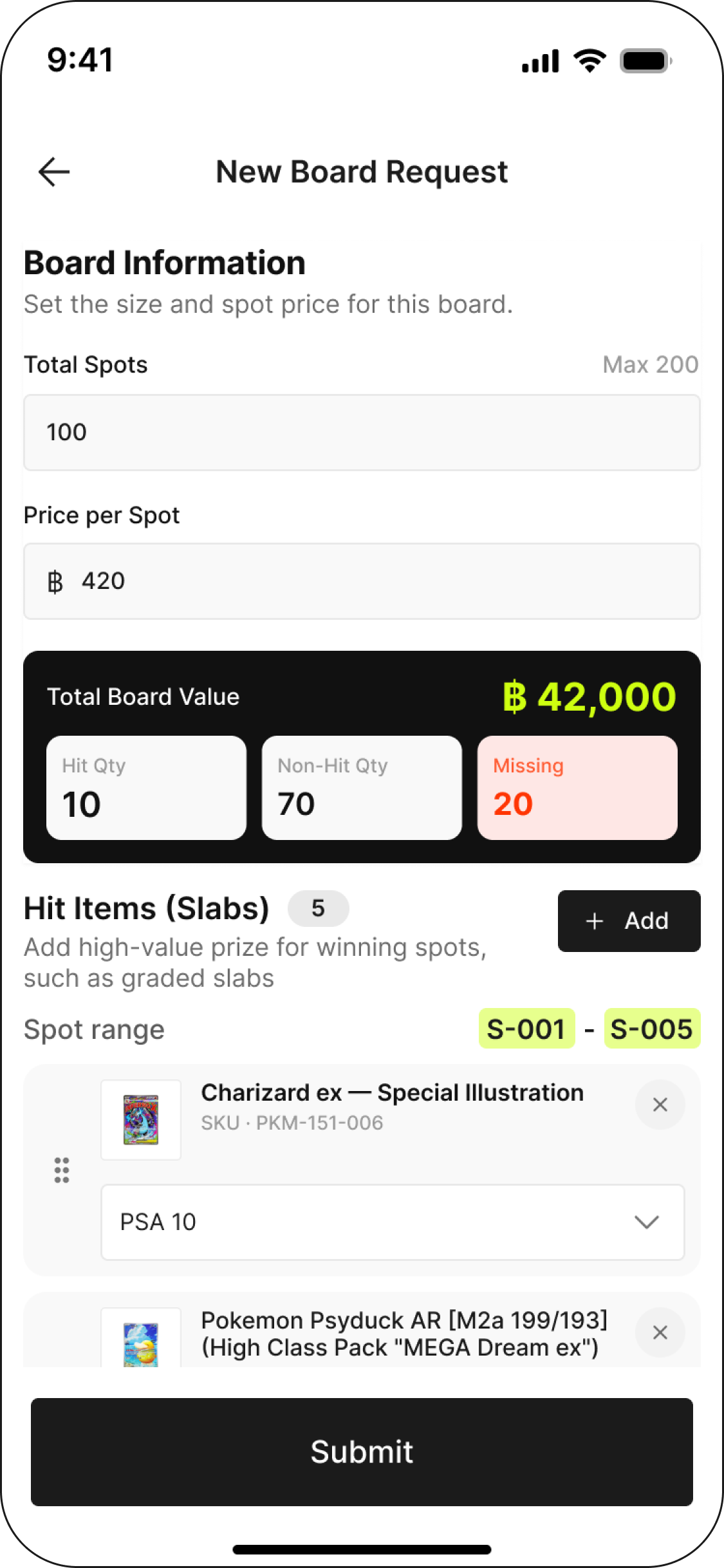
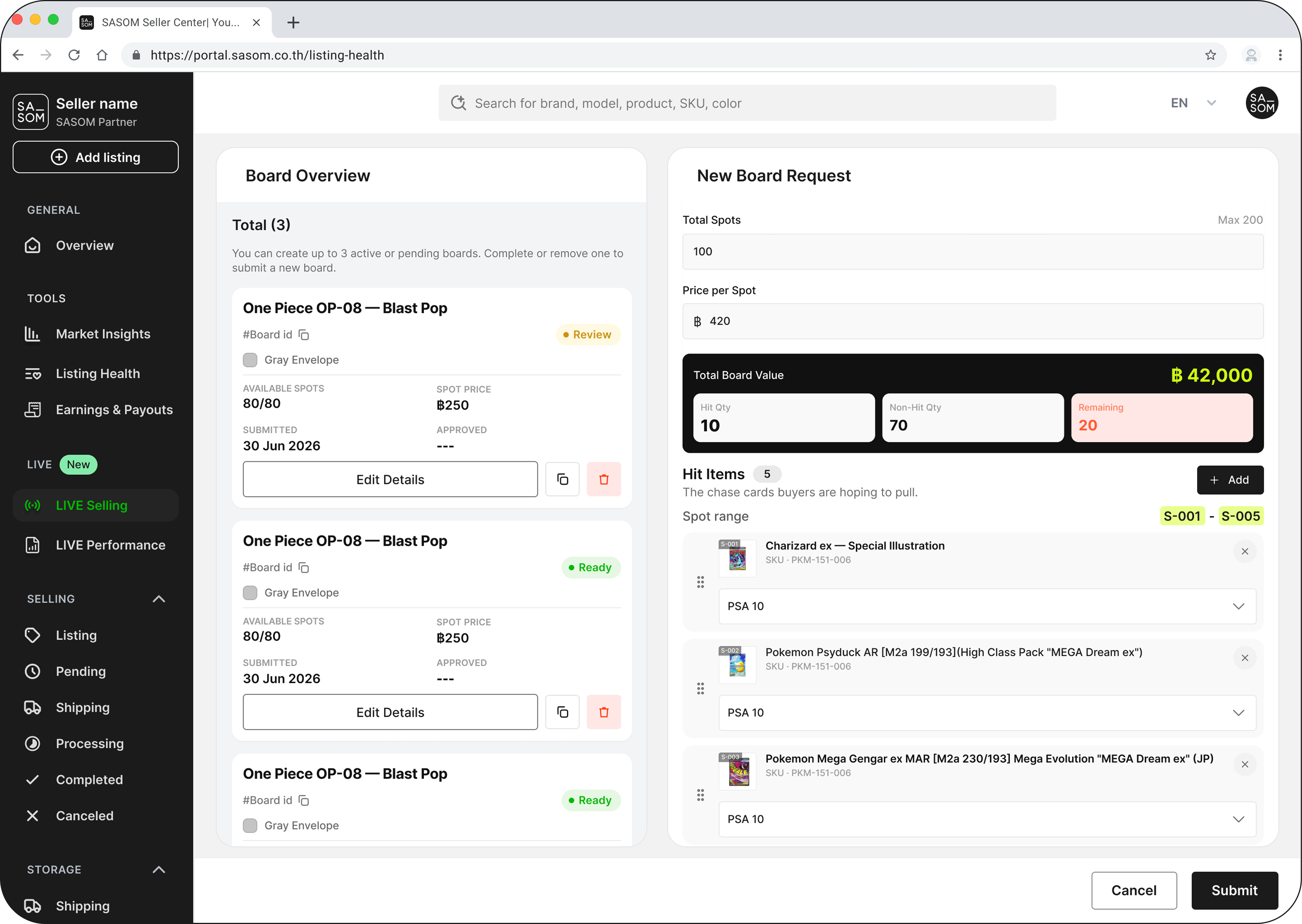
✳ You can set up and submit a board in both the app and the Seller Portal.
Watch out
Hit + Non-Hit must equal Total Spots — the Missing tile shows the gap.
Up to 3 active or pending boards at once; complete or remove one to add a fourth.
Submitting doesn't go live instantly — SASOM reviews the board first (Review → Ready) and will let you know if it needs changes.
Part 2 — Prep your envelopes
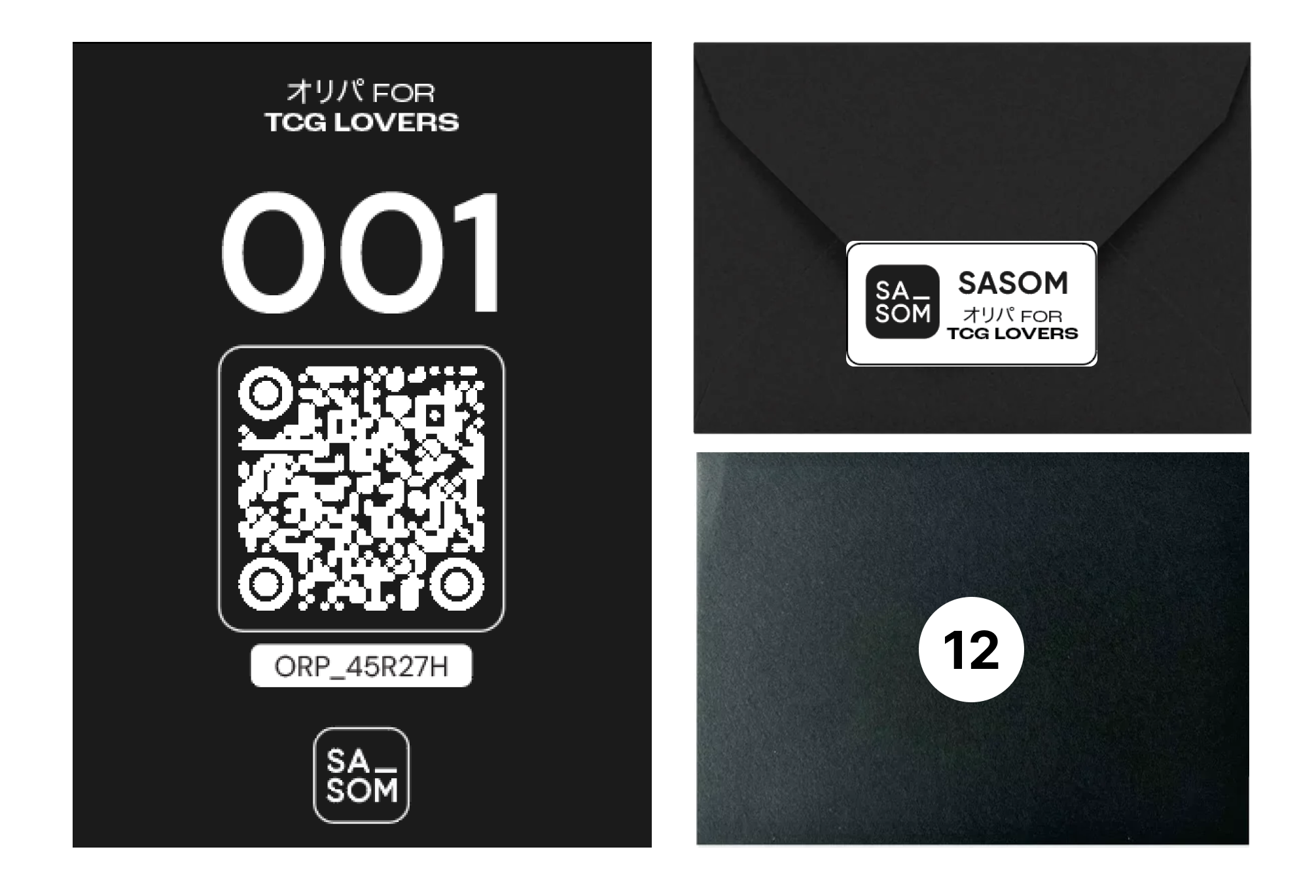
Once your board is approved, SASOM ships you a sealed pack: the real cards, each already QR-tagged and Holo-sealed inside an envelope, plus a sheet of outer number stickers. Your job is to shuffle and number them.
Steps:
Shuffle the sealed envelopes.
Apply one outer number sticker to each envelope, in any order you like — this is your secret randomisation layer.
Keep every Holo seal intact — don't open or peek into any envelope.
Tick the prep checklist, then tap Receive board — ready to go live. The board flips to Ready.
Watch out
Never break a Holo seal before the live reveal — it voids the pull.
Keep your sticker order secret — don't write it down, photograph it, or share it. The point is that no one, not even you, can predict which number holds which card.
If you run more than one board, prep the pack that matches the board colour — green / red / black.
Part 3 — Add your board to a live plan
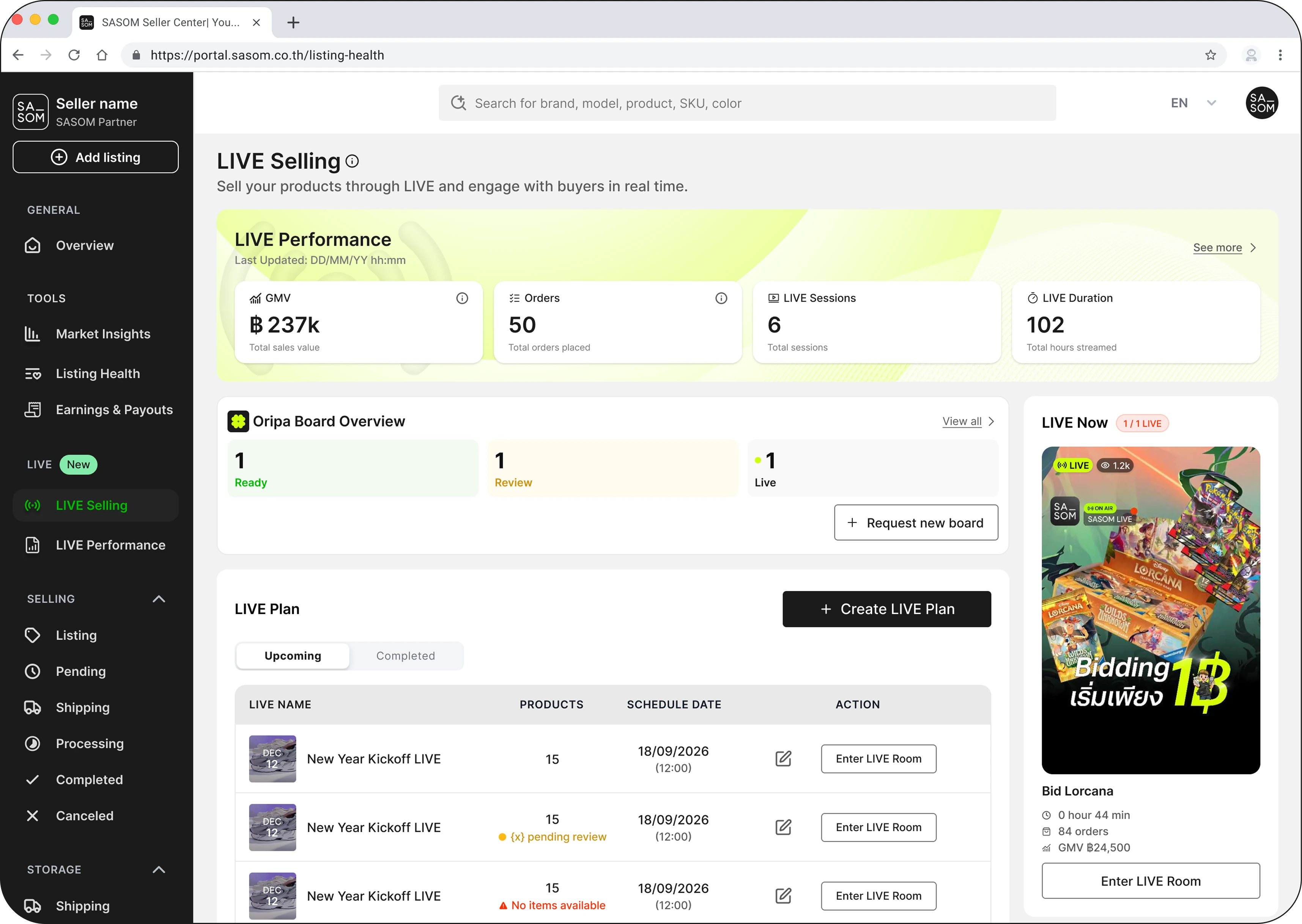
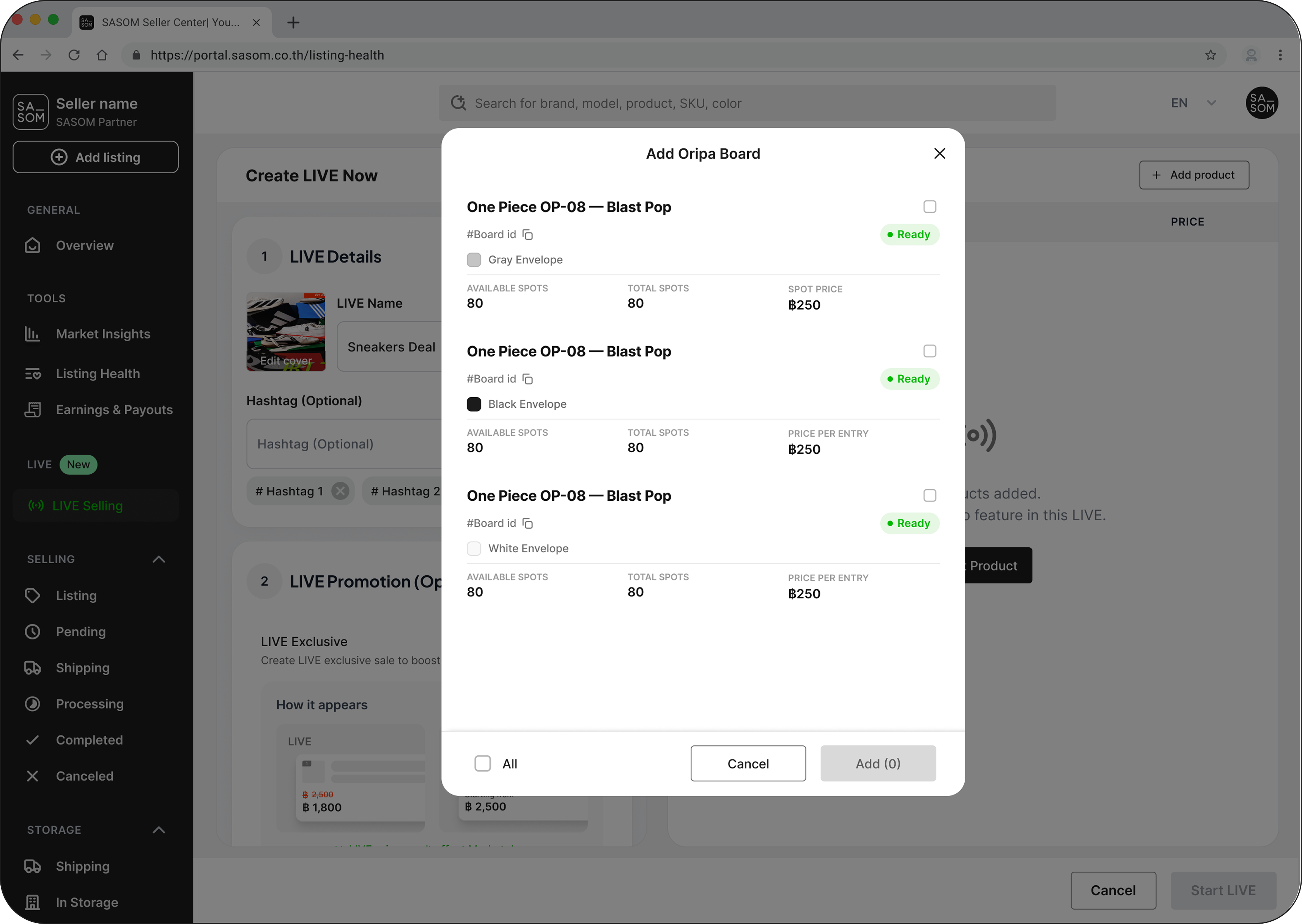
In your live plan, open the LIVE Products picker.
Choose Add Oripa board.
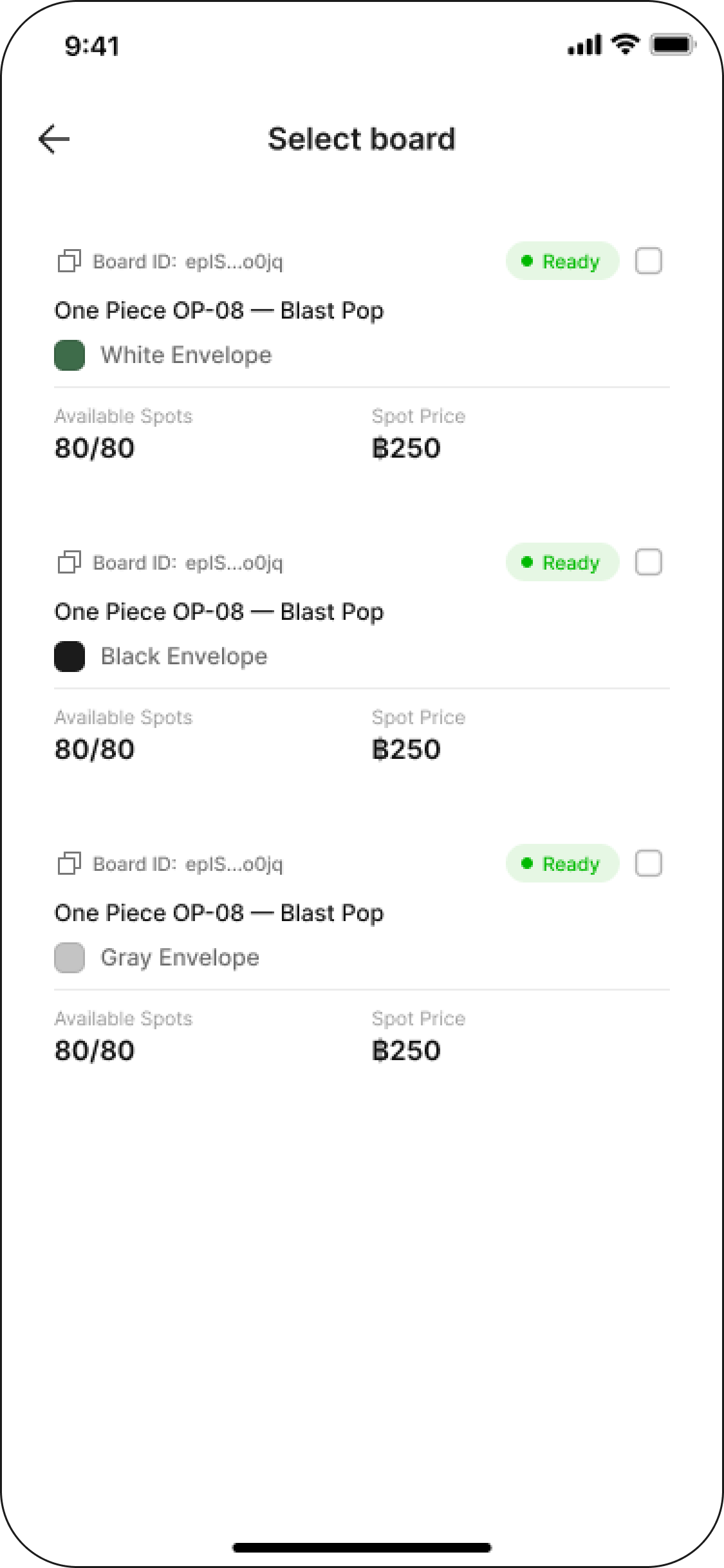
On Select board, pick the Ready board(s) you want to feature (colour-coded green / red / black).
✳ Only Ready boards can be added — a board still in Review can't go live yet.
Part 4 — Go live: run the reveal
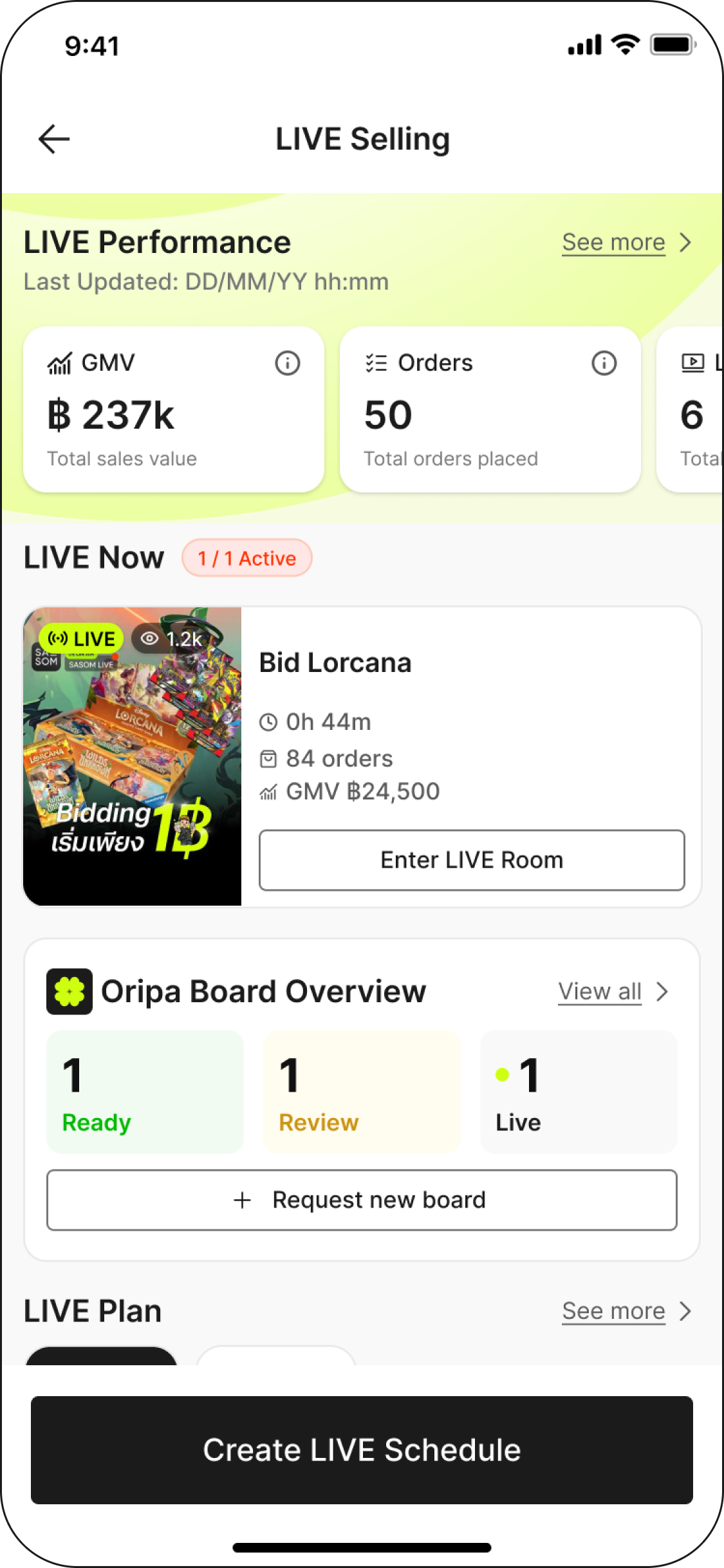
During the show, your Oripa surface is the Unseal order queue — the list of paid spots waiting to be opened. Work through it one order at a time.
For each paid spot:
A buyer buys a spot → the order appears in the queue with its outer number.
Tap Pin to bring the order up. The order shows its outer number.
Pick up the physical envelope with that number and show it to the camera so the buyer sees it's the right one.
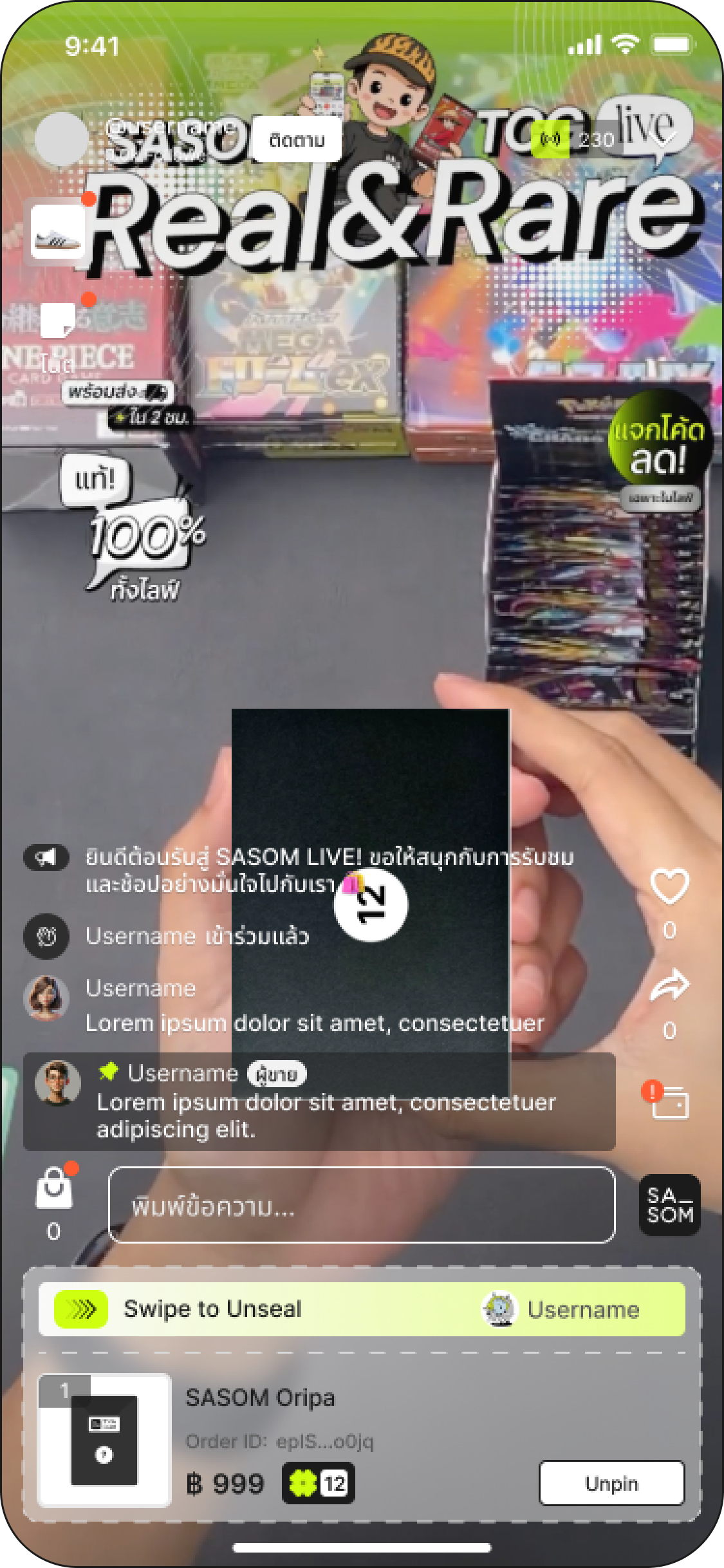
Swipe to unseal. Break the Holo seal and open the envelope on camera. Show the card.
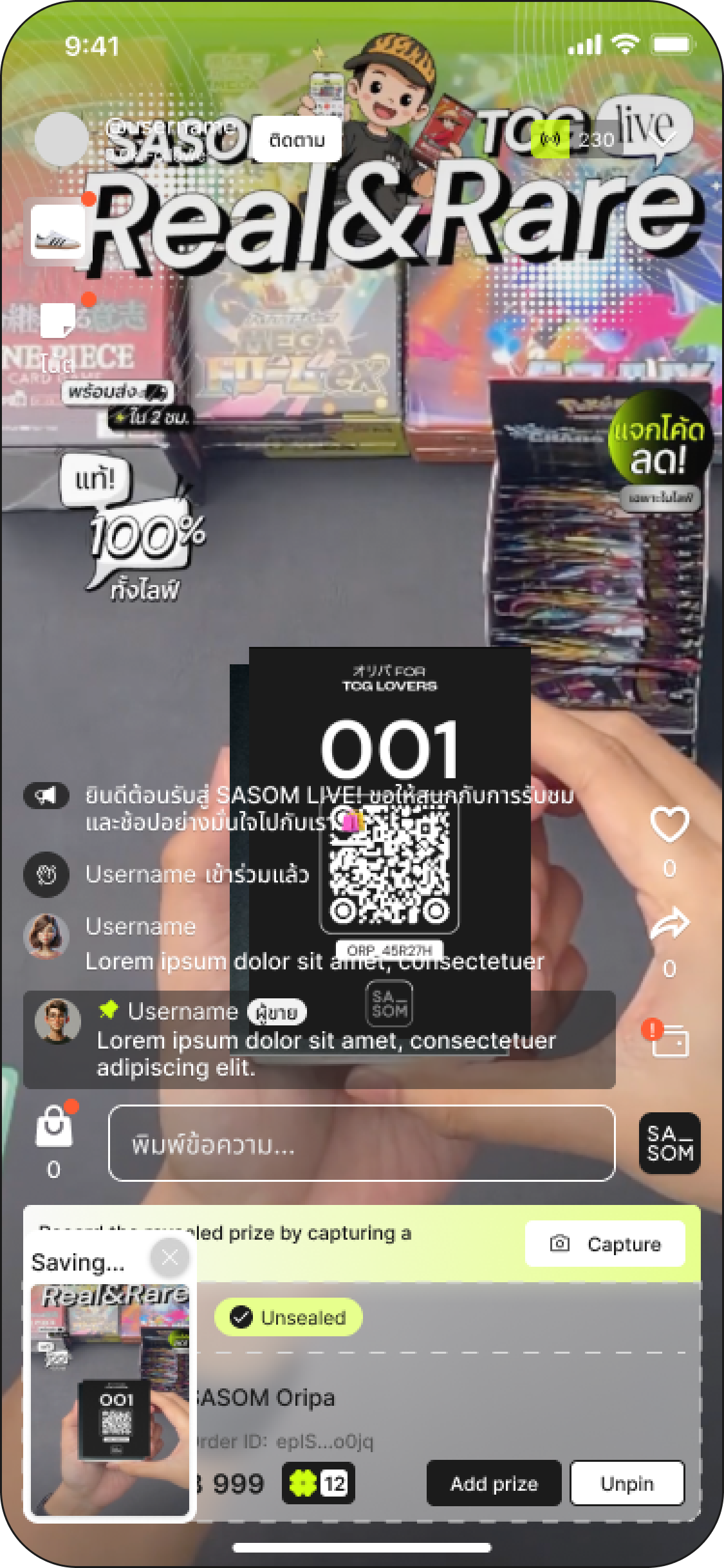
Point the card's QR at the camera. The system detects it and returns the matched card.
Tap Capture — the system saves a screenshot of the revealed card to the order as the Unseal Evidence (the dispute record). Keep both the card with its QR and the outer number on the envelope in frame.
"Last One" finisher (optional)
If you declared a bonus card when you created the board, a "Last One" deal appears at the bottom of the Buy tab while the board is live with spots left. A buyer can sweep all remaining spots at once to claim them plus your bonus card (a guaranteed reward, not a random pull). The closer pays for the remaining spots × price per spot; the board holds closed for them while any in-progress payments settle.
Watch out
⚠️ Open every queued order before you end the show — any unopened spot reverts to sealed.
You never choose the prize — the QR match fills in the card. That's what keeps Oripa fair.
Swipe, don't tap — the swipe is deliberate so you can't unseal by accident.
If a QR won't scan, don't force it — contact ops.
Part 5 — Pack and ship in to SASOM
After the show, pack each sold order to send back to SASOM.
Steps:
For each sold spot, pack the envelope + the card (with its QR) + the prize together, so SASOM can match each pull to the right order.
Keep sold orders separate from unsold ones.
From the pending page, review what sold, and confirm orders
Tap Shipping tab to print shipping label and ship everything in together.
Watch out
Print one batch ship-in label per live session — not one per order. Ship all sold orders together (bulk shipping is fine, on the standard order timeline).
Don't ship to buyers yourself. Everything comes back to SASOM first.
What SASOM does next
Once your batch arrives, SASOM unboxes each order, authenticates every card, verifies its QR matches the logged prize, and ships to each buyer on the standard authentication and delivery pipeline. Buyers can always see their Unseal Evidence screenshot on their order.
Your job ends at batch ship-in — SASOM authenticates first, then delivers. That step is what protects both you and the buyer.
See also